
- How to Migrate from Rank Math to SureRank
- How to Migrate from Yoast to SureRank
- How to Migrate from SEOPress to SureRank SEO
- How to Migrate from Squirrly SEO to SureRank
- How to Migrate from All in One SEO (AIOSEO) to SureRank
- How to Migrate from Slim SEO to SureRank
- How to Migrate from The SEO Framework to SureRank
- Migration Failed: How to Diagnose
- After You Migrate: Verification and Cleanup Checklist
- Sitemaps in SureRank
- How to Enable Video Sitemap in SureRank Pro
- How to Enable the News Sitemap in SureRank
- How to Show the HTML Sitemap on Your Site in SureRank Pro
- How to Regenerate the Sitemap After Excluding a Post Type in SureRank
- Change the Sitemap URL in SureRank
- How to Enable Author Sitemap in SureRank
- How to Exclude Post Types from the Sitemap
- How to Enable the Author Sitemap and Why Authors Are Excluded (Pro)
- Editing Meta Box
- SureRank – Page SEO Checks
- Enabling Page SEO Checks in WordPress
- Image Alt Text – Automatic Optimization
- Link Manager
- Using the SureRank Front-End Meta Box
- How to Edit the Meta Title and Description for a Single Page or Post
- Controlling Indexing with Robot Instructions
- How to Set Global Title and Description Templates with Variables
- How to Set a Canonical URL and How the Canonical Field Works
- How to Fix WWW and Non-WWW Version Redirects to Improve Your SEO
- How to Fix: No H1 Heading Found on Your Homepage
- How to Fix Missing H2 Headings on Your Homepage
- Re-run Checks Button in SureRank
- Fix Critical Error: Another SEO Plugin Detected in SureRank
- Fix Warning: Site Tagline Is Not Set in SureRank
- How to Fix: Robots.txt Contains Invalid Rules in SureRank
- How to Fix Multiple SEO Plugins Detected on Your Site
- How to Fix: Homepage is Not Indexable by Search Engines
- Warning: Homepage Does Not Contain Internal Links
- How to Fix Missing Alt Text on Homepage Images
- How to Fix Missing Canonical Tag on Your Homepage
- How to Fix Missing Open Graph Tags on Your Homepage
- How to Fix Missing Structured Data (Schema) on Your Homepage
- How to Fix XML Sitemap is Not Accessible in SureRank
- How to Fix Search Engine Visibility Blocked in WordPress
- Connect Google Search Console
- How to Fix Site Not Served Over HTTPS in SureRank
- How to Fix Robots.txt File Accessibility Issues in SureRank
- How to Fix Missing Search Engine Title on Your Home Page
- How to Fix Home Page is Not Loading Correctly
- How to Fix No Images Found on the Homepage Warning
- SureRank – Internal Link Suggestions
- How to Grant SureRank Access to Specific User Roles (Role Manager)
- Understanding the robots.txt Analyzer in SureRank
- How to Fix: Search Engine Title is Missing on the Page
- Page Level SEO: Broken Links Detected
- How to Fix Missing Alt Text on Images
- How to Fix Page URLs That Are Too Long
- Page Level SEO Warning: No Links Found on This Page
- Page Level SEO Warning: No Images or Videos Found
- Page Level SEO Warning: Missing Search Engine Description
- Page Level SEO Warning: No Subheadings Found on This Page
- Page Level SEO Warning: Canonical Tag is Missing
- Page Level SEO Warning: Open Graph Tags Missing
- What is Google Search Console and how does SureRank use it?
- Recommended Image Sizes
- SureRank – SEO Check Severity Guide
- Using SureRank with Other SEO Plugins – Best Practices
- Import/Export Feature – SureRank Plugin
- What is llms.txt and Does SureRank Support It?
- Does SureRank offer a keyword rank-tracking feature?
- Does SureRank Come With Google Analytics Integration?
- Email Summary in SureRank
- SureRank Role Manager
- Fixing a Fatal Error After Updating SureRank
- SureRank Server Requirements
- Search Engines Not Indexing Your WordPress Site?
- Sitemap Not Showing in SureRank
- Fixing robots.txt Issues in SureRank
- Why a Working Link Is Flagged as Broken (404)
- Which Pages Are Included in Your SureRank Sitemap
- Fixing False SEO Audit Warnings Caused by Caching
- Fixing “Couldn’t Fetch” for Your Sitemap in Google Search Console
- Troubleshooting: Favicon and Logo in Google Search Results (Supported Formats and CDN Gotchas)
- Customize XML Sitemap Top Bar with surerank_sitemap_top_bar_data
- Analyze ACF Field Content with SureRank
- Preserve Modified Date During Updates surerank_freeze_modified_date
- Customize Final Title Tag surerank_final_title
- Customize Post Type Archive Title Output surerank_post_type_archive_title
- Customize Archive Page Title with surerank_archive_title
- Customize the Search Results Page Title surerank_search_title
- Customizing the 404 Page Title surerank_not_found_title
- Customizing the Title Separator surerank_title_separator
- Disable SureRank’s Document Title Integration
- What Is AI Ready in SureRank?
- How to Fix the Indexing and Snippet Rules Result in SureRank AI Ready Checks
- How to Fix the Home Page Text Without JavaScript Result in SureRank AI Ready Checks
- How to Handle the OAuth Discovery Result in SureRank AI Ready Checks
- How to Handle the A2A Agent Card Result in SureRank AI Ready Checks
- How to Handle the Web Bot Auth Result in SureRank AI Ready Checks
- How to Fix the Site Slow and Site Unreachable Results in SureRank AI Ready Checks
- How to Fix the llms.txt Result in SureRank AI Ready Checks
- How to Fix the Content Signals Result in SureRank AI Ready Checks
- How to Fix the MCP Server Card Result in SureRank AI Ready Checks
How to Fix Site Not Served Over HTTPS in SureRank
If SureRank shows: “Site is not served over a secure HTTPS connection”, your website is currently using an unsecured connection (HTTP) instead of a secure one (HTTPS).
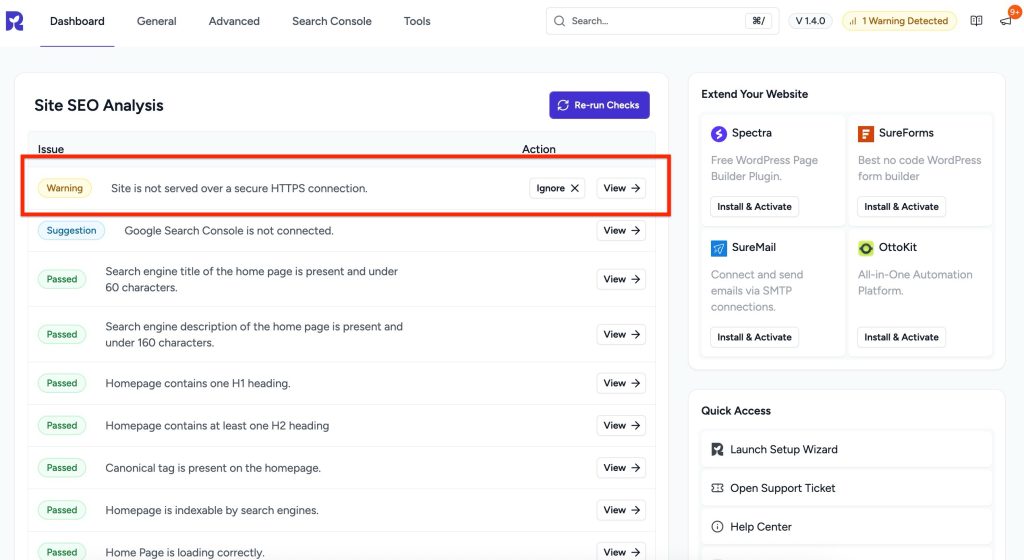
This guide will help you understand the issue, why it matters, and exactly how to fix it—whether you can manage it yourself or need help from your hosting provider.
What’s the Problem
When your website is not using HTTPS:
- Data is not encrypted: Information sent between your site and visitors (like form submissions, passwords, or payment info) can be intercepted.
- Browser warnings appear: Modern browsers show security alerts on HTTP sites, which can scare visitors away.
- SEO impact: Google favors HTTPS websites in search results; without it, your SEO may be negatively affected.
- SureRank features may be limited: Certain features, like XML sitemaps, structured data, automatic indexing, and Open Graph detection, may not function correctly without HTTPS.
Why HTTPS Matters
- Protects your visitors: HTTPS encrypts all data, preventing unauthorized access.
- Builds trust: Visitors see the padlock in the address bar, signaling a safe site.
- Improves SEO: Google treats HTTPS as a ranking factor; sites with HTTPS are more likely to rank higher.
- Ensures compatibility: Many marketing, analytics, and SEO tools require HTTPS to function properly.
How to Fix It
Step 1 – Determine How to Add SSL
HTTPS requires an SSL certificate. Depending on your hosting setup, you can either install it yourself or ask your hosting provider to do it:
Option A – Add SSL Yourself:
- Log in to your hosting account.
- Locate the SSL/TLS or Security section in your control panel.
- Enable or install the SSL certificate (many hosts offer free certificates via Let’s Encrypt).
- Wait for confirmation that the certificate is active.
Option B – Contact Your Hosting Provider:
- If your hosting plan does not allow self-installation or you are unsure, reach out to your hosting support.
- Ask them to activate an SSL certificate for your domain.
- Confirm that the SSL certificate is installed and active before proceeding.
You can use the following email template to contact your hosting team.
Email Template
Subject: Request to Enable SSL / HTTPS for My Website
Hello there,
I am the owner of the website [yourdomain.com], and I need to enable a secure HTTPS connection for my site.
Could you please help me with the following:
1. Install and activate an SSL certificate for my domain.
2. Ensure the SSL certificate covers all subdomains (if applicable).
3. Confirm that the site will automatically redirect from HTTP to HTTPS once the certificate is active.
Once the SSL is active, I plan to update my WordPress settings to use HTTPS for all URLs.
Please let me know if you need any additional information from my side.
Thank you for your support!
Best regards,
Step 2 – Update WordPress to Use HTTPS
Once SSL is installed:
- Go to Settings > General in your WordPress dashboard.
- Update both WordPress Address (URL) and Site Address (URL) to start with https:// instead of http://.
- Save changes.
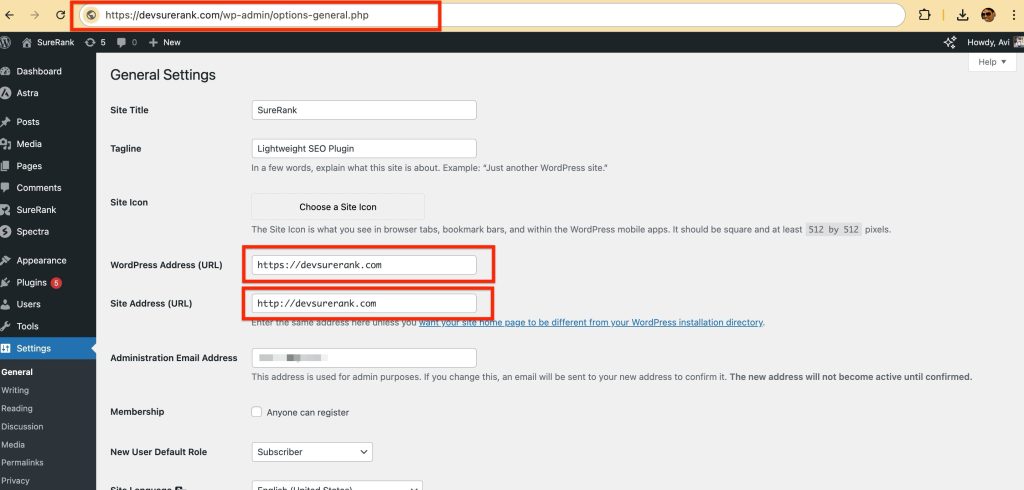
This ensures your site’s core URLs now load securely over HTTPS.
Step 3 – Update Existing Content to HTTPS
Many pages and resources may still load over HTTP, causing “mixed content” warnings. To fix this:
- Install a plugin like Really Simple SSL or Better Search Replace.
- After confirming HTTPS works for your domain, update only your own site’s HTTP URLs. Back up and test on staging first; use a WordPress-aware search-and-replace tool that handles serialized data, and verify third-party resources support HTTPS before changing them.
- Test your pages to ensure no insecure content remains.
Step 4 – Test Your HTTPS Setup
Before re-running SureRank checks:
- Open your website in a browser and look for the padlock icon in the address bar.
- Use online tools such as Why No Padlock to confirm all resources are loaded securely.
- Make sure there are no warnings about insecure content.
Step 5 – Re-run Site SEO Analysis
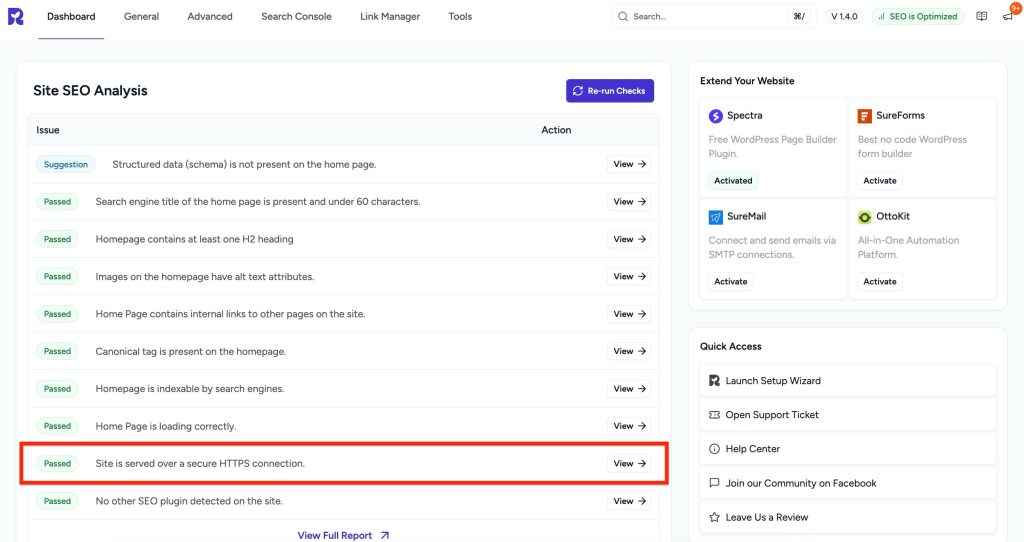
- After making changes, Re-run Checks in SureRank.
- The warning should disappear. Site is served over a secure HTTPS connection.
Summary
Securing your website with HTTPS:
- Protects your visitors’ data.
- Builds trust and credibility.
- Improves SEO and ensures SureRank features work properly.
- It can be done either by yourself (if your host supports SSL) or with help from your hosting provider.
We don't respond to the article feedback, we use it to improve our support content.