
- How to Migrate from Rank Math to SureRank
- How to Migrate from Yoast to SureRank
- How to Migrate from SEOPress to SureRank SEO
- How to Migrate from Squirrly SEO to SureRank
- How to Migrate from All in One SEO (AIOSEO) to SureRank
- How to Migrate from Slim SEO to SureRank
- How to Migrate from The SEO Framework to SureRank
- Migration Failed: How to Diagnose
- After You Migrate: Verification and Cleanup Checklist
- Sitemaps in SureRank
- How to Enable Video Sitemap in SureRank Pro
- How to Enable the News Sitemap in SureRank
- How to Show the HTML Sitemap on Your Site in SureRank Pro
- How to Regenerate the Sitemap After Excluding a Post Type in SureRank
- Change the Sitemap URL in SureRank
- How to Enable Author Sitemap in SureRank
- How to Exclude Post Types from the Sitemap
- How to Enable the Author Sitemap and Why Authors Are Excluded (Pro)
- Editing Meta Box
- SureRank – Page SEO Checks
- Enabling Page SEO Checks in WordPress
- Image Alt Text – Automatic Optimization
- Link Manager
- Using the SureRank Front-End Meta Box
- How to Edit the Meta Title and Description for a Single Page or Post
- Controlling Indexing with Robot Instructions
- How to Set Global Title and Description Templates with Variables
- How to Set a Canonical URL and How the Canonical Field Works
- How to Fix WWW and Non-WWW Version Redirects to Improve Your SEO
- How to Fix: No H1 Heading Found on Your Homepage
- How to Fix Missing H2 Headings on Your Homepage
- Re-run Checks Button in SureRank
- Fix Critical Error: Another SEO Plugin Detected in SureRank
- Fix Warning: Site Tagline Is Not Set in SureRank
- How to Fix: Robots.txt Contains Invalid Rules in SureRank
- How to Fix Multiple SEO Plugins Detected on Your Site
- How to Fix: Homepage is Not Indexable by Search Engines
- Warning: Homepage Does Not Contain Internal Links
- How to Fix: Search Engine Title is Missing on the Page
- Page Level SEO: Broken Links Detected
- How to Fix Missing Alt Text on Images
- How to Fix Page URLs That Are Too Long
- Page Level SEO Warning: No Links Found on This Page
- Page Level SEO Warning: No Images or Videos Found
- Page Level SEO Warning: Missing Search Engine Description
- Page Level SEO Warning: No Subheadings Found on This Page
- Page Level SEO Warning: Canonical Tag is Missing
- Page Level SEO Warning: Open Graph Tags Missing
- What is Google Search Console and how does SureRank use it?
- Recommended Image Sizes
- SureRank – SEO Check Severity Guide
- Using SureRank with Other SEO Plugins – Best Practices
- Import/Export Feature – SureRank Plugin
- What is llms.txt and Does SureRank Support It?
- Does SureRank offer a keyword rank-tracking feature?
- Does SureRank Come With Google Analytics Integration?
- Email Summary in SureRank
- SureRank Role Manager
- Fixing a Fatal Error After Updating SureRank
- SureRank Server Requirements
- Search Engines Not Indexing Your WordPress Site?
- Sitemap Not Showing in SureRank
- Fixing robots.txt Issues in SureRank
- Why a Working Link Is Flagged as Broken (404)
- Which Pages Are Included in Your SureRank Sitemap
- Fixing False SEO Audit Warnings Caused by Caching
- Fixing “Couldn’t Fetch” for Your Sitemap in Google Search Console
- Troubleshooting: Favicon and Logo in Google Search Results (Supported Formats and CDN Gotchas)
- Customize XML Sitemap Top Bar with surerank_sitemap_top_bar_data
- Analyze ACF Field Content with SureRank
- Preserve Modified Date During Updates surerank_freeze_modified_date
- Customize Final Title Tag surerank_final_title
- Customize Post Type Archive Title Output surerank_post_type_archive_title
- Customize Archive Page Title with surerank_archive_title
- Customize the Search Results Page Title surerank_search_title
- Customizing the 404 Page Title surerank_not_found_title
- Customizing the Title Separator surerank_title_separator
- Disable SureRank’s Document Title Integration
- What Is AI Ready in SureRank?
- How to Fix the Indexing and Snippet Rules Result in SureRank AI Ready Checks
- How to Fix the Home Page Text Without JavaScript Result in SureRank AI Ready Checks
- How to Handle the OAuth Discovery Result in SureRank AI Ready Checks
- How to Handle the A2A Agent Card Result in SureRank AI Ready Checks
- How to Handle the Web Bot Auth Result in SureRank AI Ready Checks
- How to Fix the Site Slow and Site Unreachable Results in SureRank AI Ready Checks
- How to Fix the llms.txt Result in SureRank AI Ready Checks
- How to Fix the Content Signals Result in SureRank AI Ready Checks
- How to Fix the MCP Server Card Result in SureRank AI Ready Checks
- How to Fix the Agent Skills Index Result in SureRank AI Ready Checks
- How to Fix the auth.md Result in SureRank AI Ready Checks
- How to Fix the AI Catalog Result in SureRank AI Ready Checks
- How to Fix the Personal Agent Protocol Result in SureRank AI Ready Checks
- What Each AI Ready Check Means in SureRank
- How to Run AI Ready Checks and Fix the Results in SureRank
- How to Set Content Signals in SureRank
- How to Publish Agent Discovery Files in SureRank
- How to Fix a 403 on /.well-known/ Addresses
- How to Add DNS Agent Discovery Records
- Troubleshooting: Markdown, Link Header, or WebMCP Not Showing in AI Ready Checks
- How to Improve Your isitagentready.com Result With SureRank
How to Fix the llms.txt Result in SureRank AI Ready Checks
The llms.txt check in SureRank tests whether the site serves a short list of its most useful pages at /llms.txt, written for language models. This guide explains each message the check can show, and how to fix it. To set up llms.txt itself, see How to Enable llms.txt in SureRank Pro.
Requirements
- SureRank and SureRank Premium, both active and updated to the latest versions
- An active SureRank Premium license (Pro, Starter, or Business). Upgrade here
- AI Ready turned on. See What Is AI Ready in SureRank?.
What the Check Looks At
SureRank requests https://example.com/llms.txt, with your own domain in place of example.com, and checks that it gets a text file. llms.txt is a proposal, and no AI vendor has documented reading it yet. The row is shown as something you could add, not as something that is broken.
The row shows Passed and reads “An llms.txt is being served.” when the address returns a text file.
Before You Begin
If you’re looking to see which message the site shows, follow the steps below.
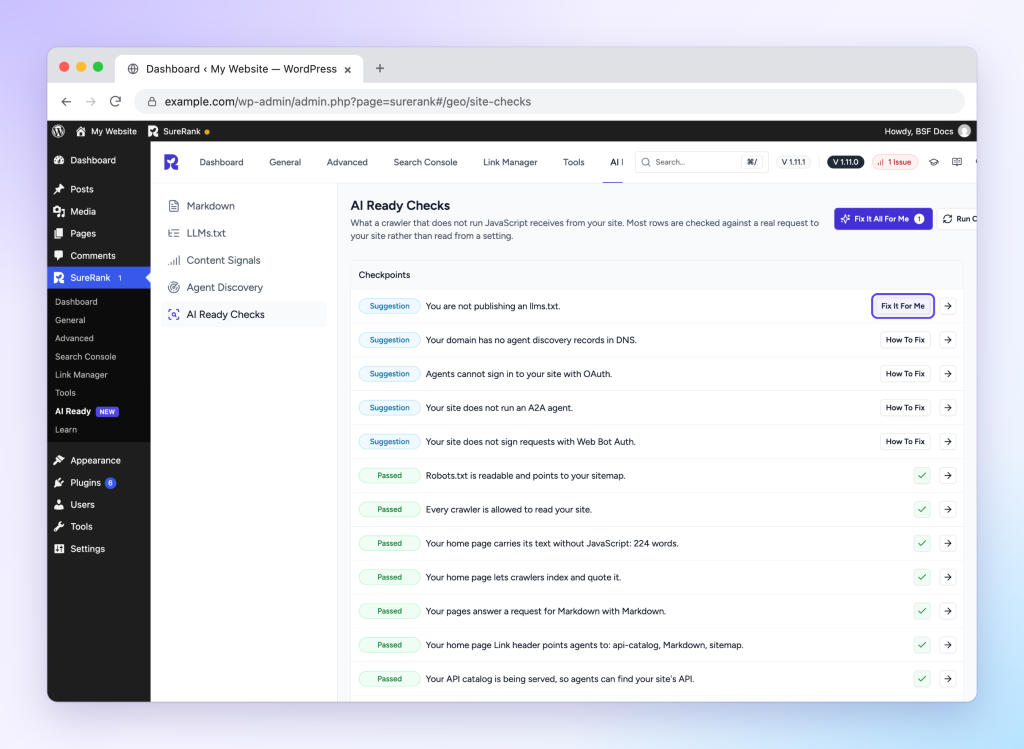
- Go to SureRank → AI Ready → AI Ready Checks.
- Find the row that begins with “You are not publishing an llms.txt.”, “Your llms.txt is not published”, “Your llms.txt is on”, or “Something else is answering at /llms.txt.”
- Click Fix It For Me on the row. If the row shows Help Me Fix instead, follow the steps in this guide.
How to Find Out What Answers an Address
If a row says that something else is answering an address, or that the address is not reaching SureRank, find out what the server sends back first. Follow the steps below. The same details help the developer or the host.
- Open the address from the row in a private browser window, with your own domain in place of example.com.
- Look at what loads. A normal web page, a server error page, and a text or JSON file each point to a different cause.
- To see the status number, open the browser developer tools (right-click the page and choose Inspect), go to the Network tab, reload the page, and click the first request. Note the Status and the Content-Type.
- Write down the exact address, the status number, the Content-Type, and the message on the row.
When you ask the developer or the host for a change, send these four details. They are needed to find which rule answers the address.
Common Issues
This section lists each message and what to do about it. After each fix, click Run Checks to test again.
Issue: “You are not publishing an llms.txt.”
Symptom: The row shows a Suggestion with a Fix It For Me button. The panel adds “Nothing is failing without one.”
Cause: The Publish an llms.txt File switch is off, so the file does not exist.
Fix:
- Click Fix It For Me on the row. Or go to SureRank → AI Ready → LLMs.txt, turn on Publish an llms.txt File, and click Save.
- Wait for the message “llms.txt turned on.”
- Click Run Checks.
Expected outcome: The row no longer shows this message. If nothing else is found, it shows Passed and reads “An llms.txt is being served.”
Issue: “Your llms.txt is not published while search engines are discouraged.”
Symptom: The row shows a Suggestion with a Fix It For Me button, even though llms.txt is turned on.
Cause: Discourage search engines from indexing this site is turned on under Settings → Reading. When it is on, SureRank keeps the list of your pages private too, so it does not publish llms.txt.
Fix:
- If the site should be found by search engines, click Fix It For Me on the row. It turns off Discourage search engines from indexing this site for the whole site. Or turn the setting off yourself under Settings → Reading.
- Click Run Checks.
Expected outcome: The row no longer shows this message. If nothing else is found, it shows Passed. If the site is private on purpose, leave the setting on. llms.txt stays unpublished, and the row stays a Suggestion.
Note: This fix changes a setting for the whole site, so Fix It All For Me does not apply it. It stays as a single click on the row.
Issue: “Your llms.txt is on, but its address answers with HTTP N.”
Symptom: The row shows a Warning. N is a number such as 404. The panel gives one of two causes.
Cause: llms.txt is turned on, but the address does not return the file. The panel shows the likely reason:
- The permalinks are set to Plain. The server answers the address before WordPress sees it.
- Another plugin or a server rule answers the address first. On a site with many pages, the file may also still be building.
Fix:
- If the permalinks are set to Plain, first ask the developer or the host to check the redirects and to take a backup, because changing the permalink structure changes the address of every post and page, and old links can stop working. Then go to Settings → Permalinks, choose any other structure, and click Save Changes.
- If they are not, wait a minute and click Run Checks again, in case the file is still building.
- If the row still shows the Warning, open https://example.com/llms.txt in a browser, with your own domain, and see what answers. Turn off the plugin or the server rule that answers instead of SureRank.
- Click Run Checks.
Expected outcome: The row no longer shows this message. If nothing else is found, it shows Passed.
Issue: “Something else is answering at /llms.txt.”
Symptom: The row shows a Warning.
Cause: The address returns a web page and not a text file. A catch-all route in the theme, or another plugin, answers the address before SureRank.
Fix:
- Open https://example.com/llms.txt in a browser, with your own domain in place of example.com. If you see a normal web page, something else is answering.
- Find the plugin or theme rule that answers every unknown address with a page, and turn it off or make an exception for /llms.txt.
- Click Run Checks.
Expected outcome: The row no longer shows this message. If nothing else is found, it shows Passed.
Issue: The row is not shown
Symptom: The llms.txt row is not in the list.
Cause: SureRank could not reach the site while it requested /llms.txt. The screen then shows a different row about the site.
Fix: See How to Fix the Site Slow and Site Unreachable Results in SureRank AI Ready Checks.
Expected outcome: After the site can be reached, the row shows on the next run.
Still Not Resolved?
If the steps above do not help, contact the SureRank support team with the following details:
- WordPress version
- SureRank and SureRank Pro versions
- The exact message on the row in AI Ready Checks
- What you see when you open https://example.com/llms.txt in a browser. Replace example.com with your domain.
Notes
- The check does not follow redirects. If the address redirects, the row shows the HTTP number of the redirect.
- Most rows in AI Ready Checks test a real request, so a cache in front of WordPress can change the result. Clear the cache before running the checks again.
Related Docs
We don't respond to the article feedback, we use it to improve our support content.