
- How to Migrate from Rank Math to SureRank
- How to Migrate from Yoast to SureRank
- How to Migrate from SEOPress to SureRank SEO
- How to Migrate from Squirrly SEO to SureRank
- How to Migrate from All in One SEO (AIOSEO) to SureRank
- How to Migrate from Slim SEO to SureRank
- How to Migrate from The SEO Framework to SureRank
- Migration Failed: How to Diagnose
- After You Migrate: Verification and Cleanup Checklist
- Sitemaps in SureRank
- How to Enable Video Sitemap in SureRank Pro
- How to Enable the News Sitemap in SureRank
- How to Show the HTML Sitemap on Your Site in SureRank Pro
- How to Regenerate the Sitemap After Excluding a Post Type in SureRank
- Change the Sitemap URL in SureRank
- How to Enable Author Sitemap in SureRank
- How to Exclude Post Types from the Sitemap
- How to Enable the Author Sitemap and Why Authors Are Excluded (Pro)
- Editing Meta Box
- SureRank – Page SEO Checks
- Enabling Page SEO Checks in WordPress
- Image Alt Text – Automatic Optimization
- Link Manager
- Using the SureRank Front-End Meta Box
- How to Edit the Meta Title and Description for a Single Page or Post
- Controlling Indexing with Robot Instructions
- How to Set Global Title and Description Templates with Variables
- How to Set a Canonical URL and How the Canonical Field Works
- How to Set the Homepage, Shop, and Archive Title & Description
- Setting Up Site Information for Google’s Knowledge Panel
- Social Settings: Facebook/Open Graph, X (Twitter) Cards, and Profile Links
- Why Do My Image Links Redirect to a Blog Post or My Homepage?
- How to Fix WWW and Non-WWW Version Redirects to Improve Your SEO
- How to Fix: No H1 Heading Found on Your Homepage
- How to Fix Missing H2 Headings on Your Homepage
- Re-run Checks Button in SureRank
- Fix Critical Error: Another SEO Plugin Detected in SureRank
- Fix Warning: Site Tagline Is Not Set in SureRank
- How to Fix: Robots.txt Contains Invalid Rules in SureRank
- How to Fix Multiple SEO Plugins Detected on Your Site
- How to Fix: Homepage is Not Indexable by Search Engines
- Warning: Homepage Does Not Contain Internal Links
- How to Fix: Search Engine Title is Missing on the Page
- Page Level SEO: Broken Links Detected
- How to Fix Missing Alt Text on Images
- How to Fix Page URLs That Are Too Long
- Page Level SEO Warning: No Links Found on This Page
- Page Level SEO Warning: No Images or Videos Found
- Page Level SEO Warning: Missing Search Engine Description
- Page Level SEO Warning: No Subheadings Found on This Page
- Page Level SEO Warning: Canonical Tag is Missing
- Page Level SEO Warning: Open Graph Tags Missing
- What is Google Search Console and how does SureRank use it?
- Recommended Image Sizes
- SureRank – SEO Check Severity Guide
- Using SureRank with Other SEO Plugins – Best Practices
- Import/Export Feature – SureRank Plugin
- What is llms.txt and Does SureRank Support It?
- Does SureRank offer a keyword rank-tracking feature?
- Does SureRank Come With Google Analytics Integration?
- Email Summary in SureRank
- SureRank Role Manager
- Fixing a Fatal Error After Updating SureRank
- SureRank Server Requirements
- Search Engines Not Indexing Your WordPress Site?
- Sitemap Not Showing in SureRank
- Fixing robots.txt Issues in SureRank
- Why a Working Link Is Flagged as Broken (404)
- Which Pages Are Included in Your SureRank Sitemap
- Fixing False SEO Audit Warnings Caused by Caching
- Fixing “Couldn’t Fetch” for Your Sitemap in Google Search Console
- Troubleshooting: Favicon and Logo in Google Search Results (Supported Formats and CDN Gotchas)
- Customize XML Sitemap Top Bar with surerank_sitemap_top_bar_data
- Analyze ACF Field Content with SureRank
- Preserve Modified Date During Updates surerank_freeze_modified_date
- Customize Final Title Tag surerank_final_title
- Customize Post Type Archive Title Output surerank_post_type_archive_title
- Customize Archive Page Title with surerank_archive_title
- Customize the Search Results Page Title surerank_search_title
- Customizing the 404 Page Title surerank_not_found_title
- Customizing the Title Separator surerank_title_separator
- Disable SureRank’s Document Title Integration
- What Is AI Ready in SureRank?
- How to Fix the Indexing and Snippet Rules Result in SureRank AI Ready Checks
- How to Fix the Home Page Text Without JavaScript Result in SureRank AI Ready Checks
- How to Handle the OAuth Discovery Result in SureRank AI Ready Checks
- How to Handle the A2A Agent Card Result in SureRank AI Ready Checks
- How to Handle the Web Bot Auth Result in SureRank AI Ready Checks
- How to Fix the Site Slow and Site Unreachable Results in SureRank AI Ready Checks
- How to Fix the llms.txt Result in SureRank AI Ready Checks
- How to Fix the Content Signals Result in SureRank AI Ready Checks
- How to Fix the MCP Server Card Result in SureRank AI Ready Checks
Link Manager
SureRank Link Manager scans published content from your selected post types and reports internal and external links, possible broken links, and pages with no incoming internal links in that scan. These pages may still be discovered through external links or a sitemap.
Access Link Manager
Link Manager lives inside the SureRank area of your WordPress admin.
- Open your WordPress admin and click SureRank in the left sidebar.
- In the SureRank top navigation bar, click Link Manager.
- In the left panel, expand Link Manager to see the Dashboard and Settings sections.
Note: The first time you open the Dashboard, it shows a pre-scan state. A yellow notice confirms that the initial scan is scheduled and will start automatically. You can also click Scan Now to begin immediately.
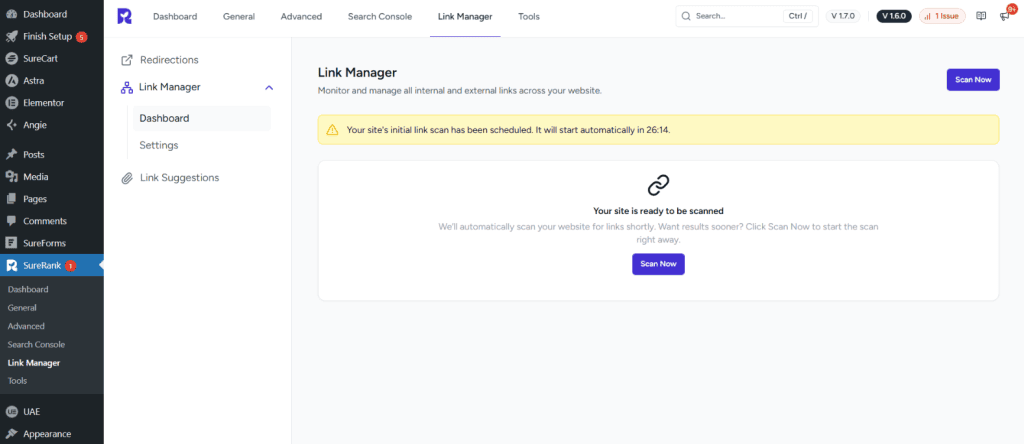
The Link Manager is divided into two separate sections:
- Link Manager Dashboard
- Link Manager Settings
Link Manager Dashboard
The Link Manager Dashboard lets you initiate a scan whenever needed. Once a scan is complete, it displays the results and gives you a clear overview of links found in the selected post types.
After a scan completes, the Dashboard gives you an overview of your site’s link health. The results are organised into three sections:
- Overview
- Top Linked Pages
- Link Statuses
Scan Now
The Scan Now button initiates a fresh scan of your site’s link structure. Click it whenever you want to update your link analysis with the latest content and link changes.
Overview Cards
The Overview section contains four summary cards. Each card shows a total count and links to a filtered All Links report for that specific category.
- Internal Links Total number of internal links found across all scanned pages. Click to open All Links filtered to internal links only.
- External Links Total number of outbound links pointing to external domains. Click to see only external link records.
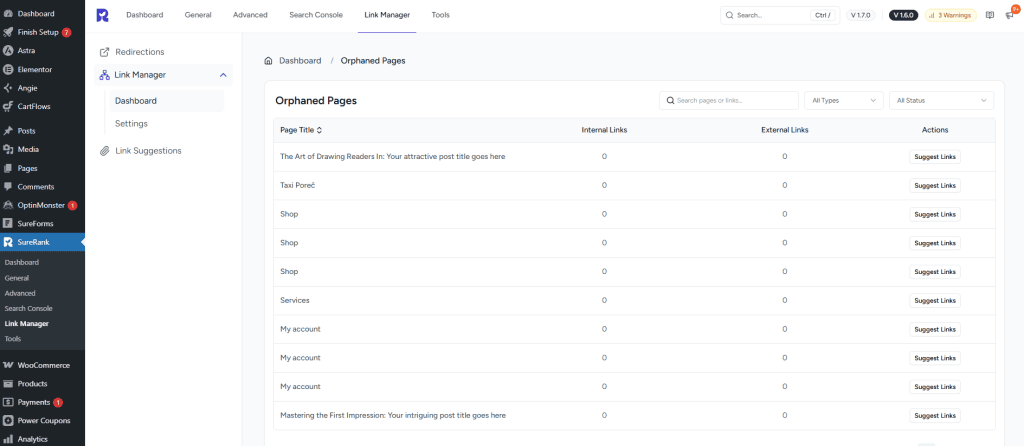
- Orphaned Pages: Pages with no inbound internal links found in the scan. They may still have links from content outside the scan. Click to open the Orphaned Pages report.
- Broken Links Links that return an error response (for example, 404 Not Found). External links that show as Blocked (for example, 403 Blocked) are not counted here. These are flagged as Need to Fix. Click to open All Links filtered to broken links.
Links Report
To view a detailed report for any link category, click the corresponding card in the Overview section.
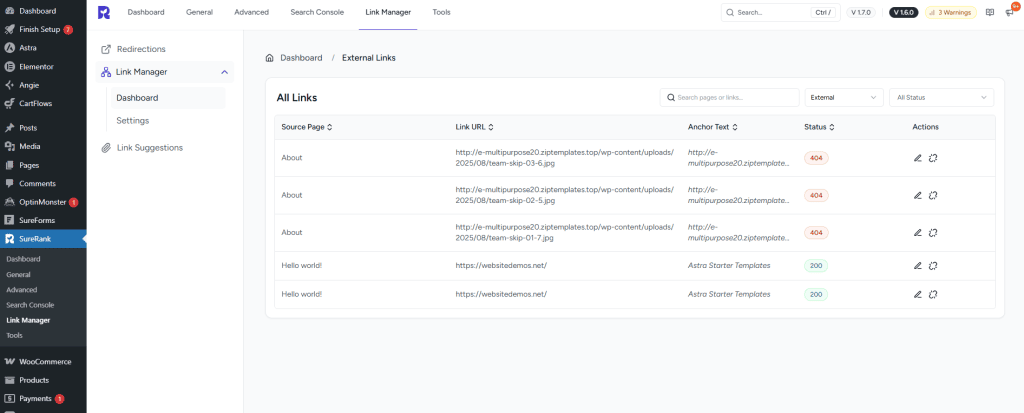
You can open reports for Internal Links, External Links, or Broken Links. Each report displays all links under that category with the following details:
- Source Page: The page on your site where the link appears.
- Link URL: The destination URL the link points to.
- Anchor Text: The clickable text shown for the link on the page.
- Status: The HTTP status code returned by that URL (for example, 200 OK or 404 Not Found). External links that refuse automated checks show a grey Blocked badge with the code, for example 403 Blocked. See Blocked Links below.
Before editing or removing a flagged link, open the URL and check its response. Authentication, bot protection, rate limits, and temporary errors can cause scan failures. See the working-link troubleshooting guide linked in the Blocked Links section below. From the Actions column, you can manage links directly:
- Edit (pencil icon): Update the link URL or anchor text without leaving the report.
- Unlink (chain icon): Remove the link from the page directly.
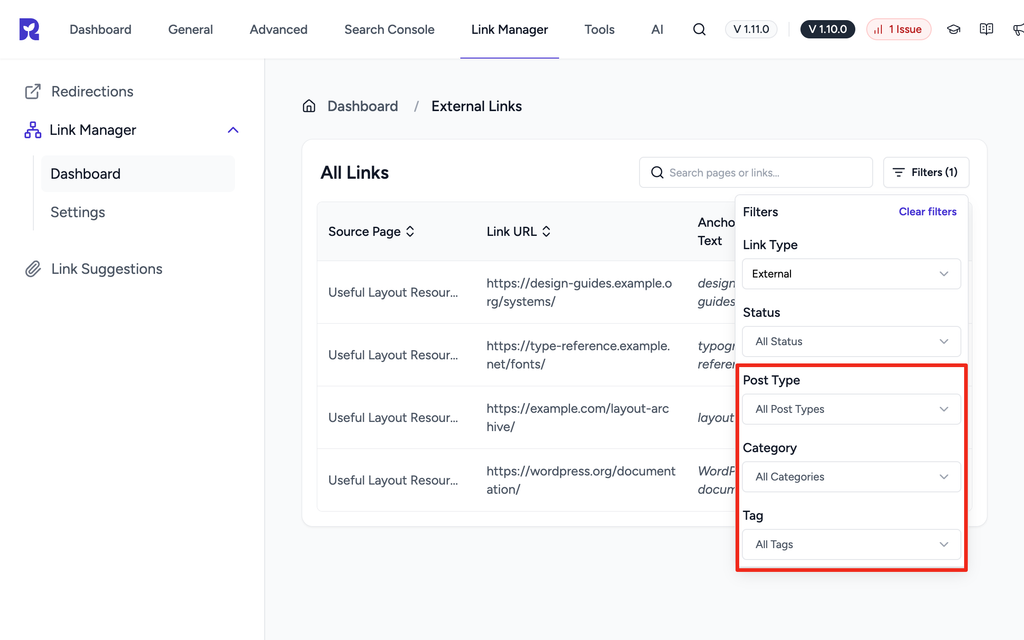
To manage a large number of links efficiently, you can use the available filters at the top of the report:
- Search bar: Find specific links by page name or URL.
- Link Type filter: View Internal links, External links, or both.
- Status filter: Focus on links with a specific HTTP response code such as 200 OK or 404 Not Found.
- Post Type filter: Show only links found on pages of one post type, such as Posts or Pages.
- Category filter: Show only links found on posts in one category.
- Tag filter: Show only links found on posts with one tag.
Blocked Links
Some websites refuse automated link checks, even though their pages open normally in a browser. In SureRank Pro 1.10.0 and later, Link Manager shows the status codes 401, 403 and 429 as Blocked for external links, for example 403 Blocked. The badge is grey and appears in the Status column. Hover over the badge to read: “This site blocks automated checks. The link may still work in a browser.”
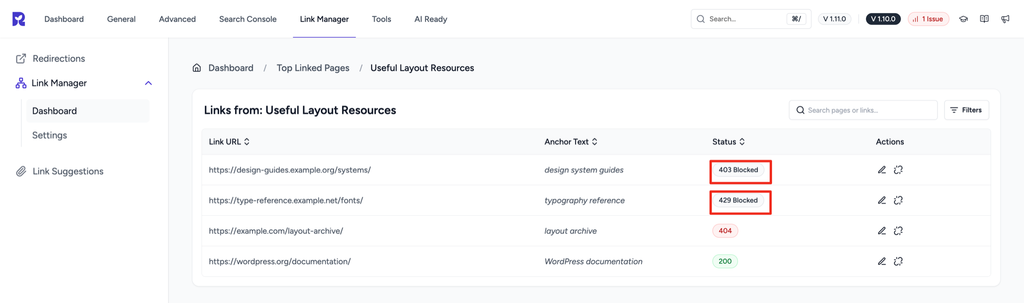
- Blocked links are not counted in the Broken Links card or in the broken links report.
- Internal links with these codes are always shown as broken, because they point to your own site.
- Other errors, such as 404 or 503, are still shown as broken.
To change which codes show as Blocked, see Customize Blocked Link Statuses surerank_link_manager_blocked_statuses. If a link is flagged as broken but works in your browser, see Why a Working Link Is Flagged as Broken (404).
Orphaned Pages Report
Clicking the Orphaned Pages card opens a dedicated report showing pages with no incoming internal links found in the scan. For each orphaned page, you will see:
- Page Title The name of the orphaned page.
- Internal Links Number of internal links on that page (outbound). Fully isolated pages show 0 here.
- External Links Number of external links on that page.
- Suggest Links An action that provides AI-powered link recommendations so you can connect the page to the rest of your site and resolve its orphan status.
Top Linked Pages
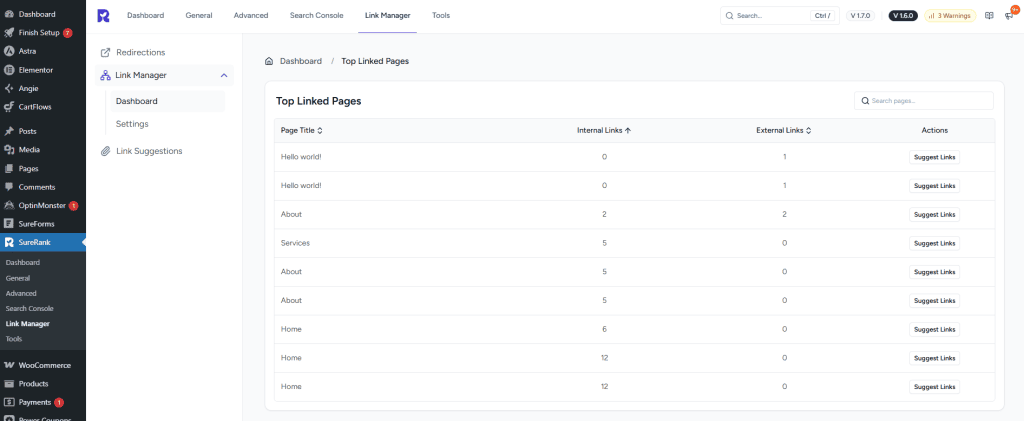
The Top Linked Pages table displays pages ranked by total link count, showing internal and external links for each page.
View Full Report: Click to see the complete list with each page’s title, internal link count, and external link count.
Sorting: Click the arrow next to the Internal Links or External Links column to sort by your preference.
Suggest Links: Click the button next to any page to explore linking opportunities or get link suggestions for that specific page.
Search Bar: If your site has many pages, use the search bar above the table to find a specific page.
Link Statuses
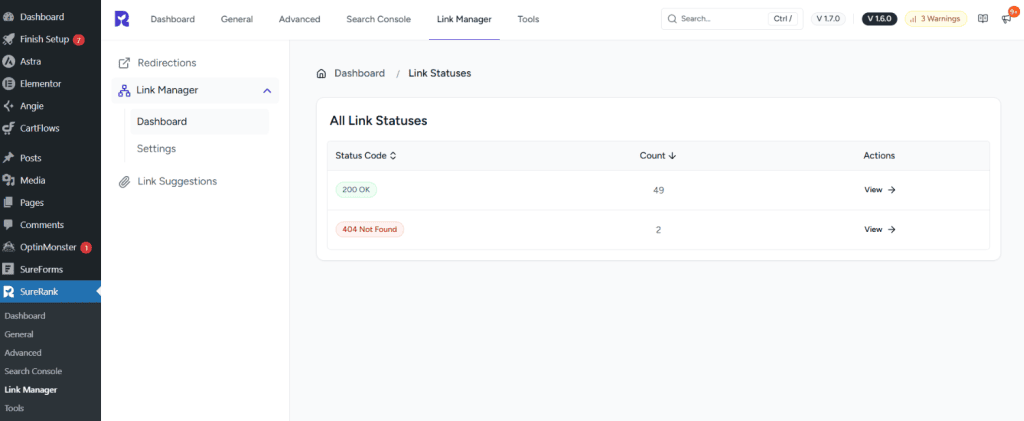
The All Link Statuses table displays a summary of all links on your site grouped by their HTTP status codes.
Status Code: Shows the HTTP response code (e.g., 200 OK for working links, 404 Not Found for broken links).
Count: Displays the number of links with that status code.
View: Click to see all links with that specific status code and take action if needed.
The table lists every code by its number. The codes that Link Manager shows as Blocked (401, 403 and 429) are listed here by code, for example 403 Forbidden. Click View to open the links with that code. In that report, external links with these codes show the Blocked badge.
Link Manager Settings
Use Link Manager > Settings to control which post types are included in scans. By default, Posts and Pages are selected, but you can also include Media (attachments) and any custom post types registered on your site.
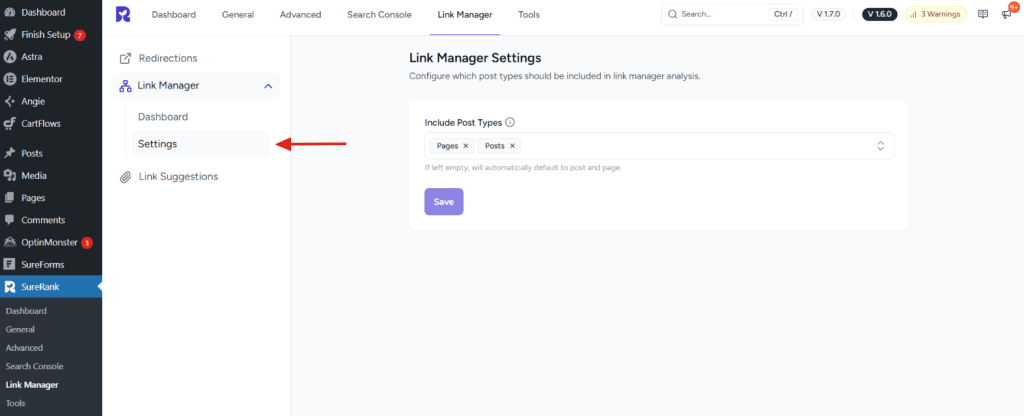
- Open Link Manager > Settings.
- Click the Include Post Types dropdown.
- Select one or more post types to include (Posts, Pages, Media, or custom types).
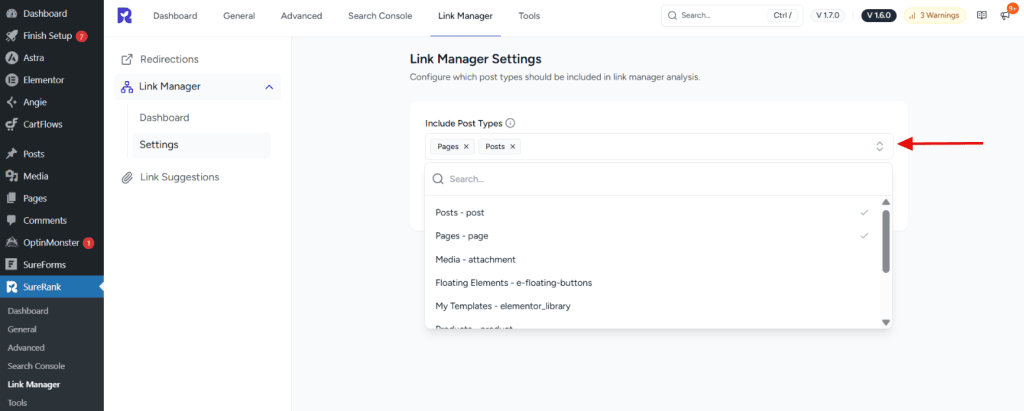
- Save your settings.
- Click Scan Now to run a new scan with the updated configuration.
Additional Suggestions
- Link Manager only analyzes published content from post types you select.
- Posts and Pages are enabled by default; add other post types manually in Settings.
- Scans run in the background; avoid starting new scans or changing post type settings while a scan is in progress.
We don't respond to the article feedback, we use it to improve our support content.