
- How to Migrate from Rank Math to SureRank
- How to Migrate from Yoast to SureRank
- How to Migrate from SEOPress to SureRank SEO
- How to Migrate from Squirrly SEO to SureRank
- How to Migrate from All in One SEO (AIOSEO) to SureRank
- How to Migrate from Slim SEO to SureRank
- How to Migrate from The SEO Framework to SureRank
- Migration Failed: How to Diagnose
- After You Migrate: Verification and Cleanup Checklist
- Sitemaps in SureRank
- How to Enable Video Sitemap in SureRank Pro
- How to Enable the News Sitemap in SureRank
- How to Show the HTML Sitemap on Your Site in SureRank Pro
- How to Regenerate the Sitemap After Excluding a Post Type in SureRank
- Change the Sitemap URL in SureRank
- How to Enable Author Sitemap in SureRank
- How to Exclude Post Types from the Sitemap
- How to Enable the Author Sitemap and Why Authors Are Excluded (Pro)
- Editing Meta Box
- SureRank – Page SEO Checks
- Enabling Page SEO Checks in WordPress
- Image Alt Text – Automatic Optimization
- Link Manager
- Using the SureRank Front-End Meta Box
- How to Edit the Meta Title and Description for a Single Page or Post
- Controlling Indexing with Robot Instructions
- How to Set Global Title and Description Templates with Variables
- How to Set a Canonical URL and How the Canonical Field Works
- How to Fix WWW and Non-WWW Version Redirects to Improve Your SEO
- How to Fix: No H1 Heading Found on Your Homepage
- How to Fix Missing H2 Headings on Your Homepage
- Re-run Checks Button in SureRank
- Fix Critical Error: Another SEO Plugin Detected in SureRank
- Fix Warning: Site Tagline Is Not Set in SureRank
- How to Fix: Robots.txt Contains Invalid Rules in SureRank
- How to Fix Multiple SEO Plugins Detected on Your Site
- How to Fix: Homepage is Not Indexable by Search Engines
- Warning: Homepage Does Not Contain Internal Links
- How to Fix Missing Alt Text on Homepage Images
- How to Fix Missing Canonical Tag on Your Homepage
- How to Fix Missing Open Graph Tags on Your Homepage
- How to Fix Missing Structured Data (Schema) on Your Homepage
- How to Fix XML Sitemap is Not Accessible in SureRank
- How to Fix Search Engine Visibility Blocked in WordPress
- Connect Google Search Console
- How to Fix Site Not Served Over HTTPS in SureRank
- How to Fix Robots.txt File Accessibility Issues in SureRank
- How to Fix Missing Search Engine Title on Your Home Page
- How to Fix Home Page is Not Loading Correctly
- How to Fix No Images Found on the Homepage Warning
- SureRank – Internal Link Suggestions
- How to Grant SureRank Access to Specific User Roles (Role Manager)
- Understanding the robots.txt Analyzer in SureRank
- How to Fix: Search Engine Title is Missing on the Page
- Page Level SEO: Broken Links Detected
- How to Fix Missing Alt Text on Images
- How to Fix Page URLs That Are Too Long
- Page Level SEO Warning: No Links Found on This Page
- Page Level SEO Warning: No Images or Videos Found
- Page Level SEO Warning: Missing Search Engine Description
- Page Level SEO Warning: No Subheadings Found on This Page
- Page Level SEO Warning: Canonical Tag is Missing
- Page Level SEO Warning: Open Graph Tags Missing
- What is Google Search Console and how does SureRank use it?
- Recommended Image Sizes
- SureRank – SEO Check Severity Guide
- Using SureRank with Other SEO Plugins – Best Practices
- Import/Export Feature – SureRank Plugin
- What is llms.txt and Does SureRank Support It?
- Does SureRank offer a keyword rank-tracking feature?
- Does SureRank Come With Google Analytics Integration?
- Email Summary in SureRank
- SureRank Role Manager
- Fixing a Fatal Error After Updating SureRank
- SureRank Server Requirements
- Search Engines Not Indexing Your WordPress Site?
- Sitemap Not Showing in SureRank
- Fixing robots.txt Issues in SureRank
- Why a Working Link Is Flagged as Broken (404)
- Which Pages Are Included in Your SureRank Sitemap
- Fixing False SEO Audit Warnings Caused by Caching
- Fixing “Couldn’t Fetch” for Your Sitemap in Google Search Console
- Troubleshooting: Favicon and Logo in Google Search Results (Supported Formats and CDN Gotchas)
- Customize XML Sitemap Top Bar with surerank_sitemap_top_bar_data
- Analyze ACF Field Content with SureRank
- Preserve Modified Date During Updates surerank_freeze_modified_date
- Customize Final Title Tag surerank_final_title
- Customize Post Type Archive Title Output surerank_post_type_archive_title
- Customize Archive Page Title with surerank_archive_title
- Customize the Search Results Page Title surerank_search_title
- Customizing the 404 Page Title surerank_not_found_title
- Customizing the Title Separator surerank_title_separator
- Disable SureRank’s Document Title Integration
- What Is AI Ready in SureRank?
- How to Fix the Indexing and Snippet Rules Result in SureRank AI Ready Checks
- How to Fix the Home Page Text Without JavaScript Result in SureRank AI Ready Checks
- How to Handle the OAuth Discovery Result in SureRank AI Ready Checks
- How to Handle the A2A Agent Card Result in SureRank AI Ready Checks
- How to Handle the Web Bot Auth Result in SureRank AI Ready Checks
- How to Fix the Site Slow and Site Unreachable Results in SureRank AI Ready Checks
- How to Fix the llms.txt Result in SureRank AI Ready Checks
- How to Fix the Content Signals Result in SureRank AI Ready Checks
- How to Fix the MCP Server Card Result in SureRank AI Ready Checks
How to Fix Robots.txt File Accessibility Issues in SureRank
If SureRank shows “Your site does not currently have an accessible robots.txt file.” (panel title: “Robots.txt is missing or inaccessible.”) in the Site SEO Audit on the Dashboard, or the AI Ready Checks screen shows “Your robots.txt answers with HTTP 404.” (or another HTTP number) or “Could not read your robots.txt.”, this guide explains what the message means, why it matters, and how to fix it.
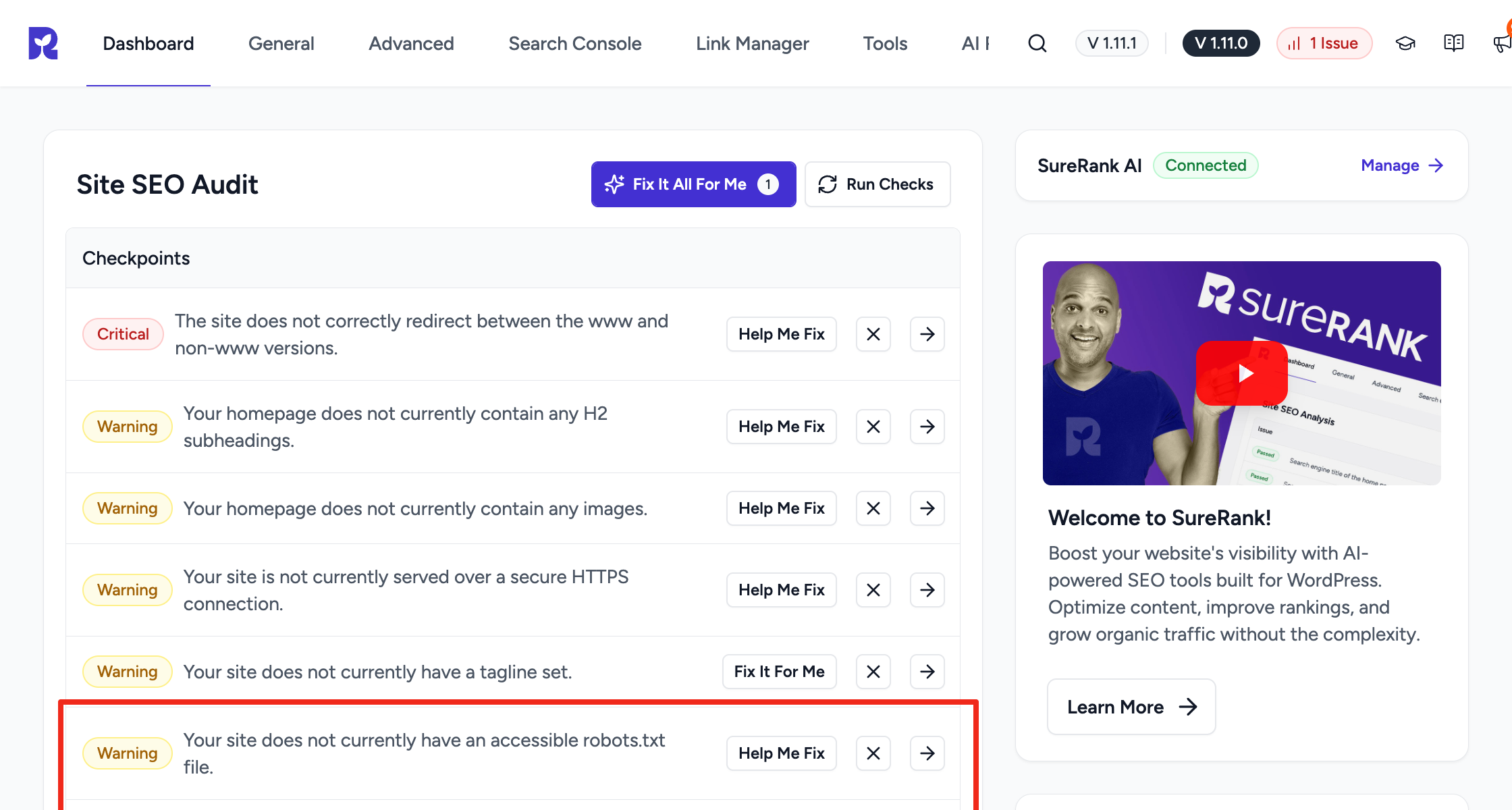
This guide will help you understand what this means, why it’s important for SEO, and how to fix it even if you’re not a technical expert.
What’s the Problem
The robots.txt URL gives crawlers instructions about which paths to request. WordPress may serve it dynamically, so a physical file in the root directory is not always necessary.
If this file is inaccessible:
- A 404 response generally means Google assumes no crawl restrictions; a missing file is not itself an indexing block.
- Server errors or network failures can cause Google to temporarily slow or pause crawling. Investigate the actual response.
- SEO performance can be negatively affected.
Common causes:
- The robots.txt URL returns an error or is not served by WordPress or the server.
- Incorrect file permissions are preventing access.
- Server or security rules are blocking search engine crawlers.
What the AI Ready Checks Messages Mean
On SureRank → AI Ready → AI Ready Checks, the Robots.txt Is Readable check can show one of these results. The Help Me Fix button on each of them opens this guide.
- Your robots.txt answers with HTTP 404. (Warning, and the same for any answer below 500, such as 403): The address answered, but not with a file. Crawlers treat a missing robots.txt as permission to read everything, so nothing is blocked, but there is no Sitemap line to point them at your pages.
- Your robots.txt answers with HTTP 500. (Critical, and the same for any answer of 500 or more): Crawlers treat a server error on robots.txt as a request to stay off the whole site until it is fixed.
- Could not read your robots.txt. SureRank could not get an answer from the address. The row shows the reason that the request reported. On a site at the root of a domain, SureRank then reads the file from WordPress itself, so this message is not common. If the reason is a timeout, run the checks again later.
Why This Matters
- Search visibility: The effect depends on the HTTP response; a 404 differs from a server or network error.
- Crawl efficiency: Search engines may waste resources crawling pages you don’t want them to or skip important pages entirely.
- SEO health: Without proper crawling, your site’s search ranking potential is reduced.
How to Fix
The Robots.txt file is automatically handled by SureRank after activation. If you don’t see it, follow the steps below.
Step 1 – Access the Robots.txt Editor
- Go to your WordPress dashboard.
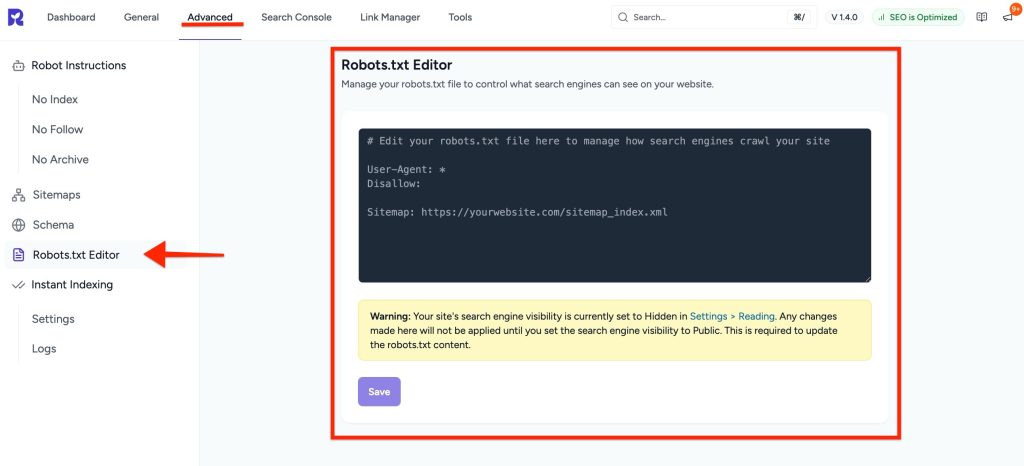
- Navigate to SureRank → Advanced → Robots.txt Editor.
Step 2 – Edit Robots.txt
- If no robots.txt content is saved, the editor shows the default robots.txt that SureRank serves as a hint. Type the rules you want and click Save. If a real
robots.txtfile exists in the root folder of the site, the editor is turned off, and the file has to be edited there. - You can add rules to allow search engines to crawl your site. Example:
User-agent: *
Disallow: /wp-admin/
Allow: /wp-admin/admin-ajax.php
Sitemap: https://yourwebsite.com/sitemap_index.xmlStep 3 – Save Changes
- Click Save Changes to apply your edits.
- If you use a caching plugin, clear your site cache to ensure the updated robots.txt is served.
Step 4 – Check File Permissions
- Ensure the robots.txt file is readable by the web server.
- Recommended permissions: 644 (owner can write, everyone can read).
Step 5 – Test Robots.txt Accessibility
- Open your browser and visit: https://yourwebsite.com/robots.txt
- Ensure there are no 403 or 404 errors.
Step 6 – Run the Checks Again
- On the screen that showed the message, click Run Checks. That is SureRank → Dashboard for the Site SEO Audit, or SureRank → AI Ready → AI Ready Checks for the AI Ready result.
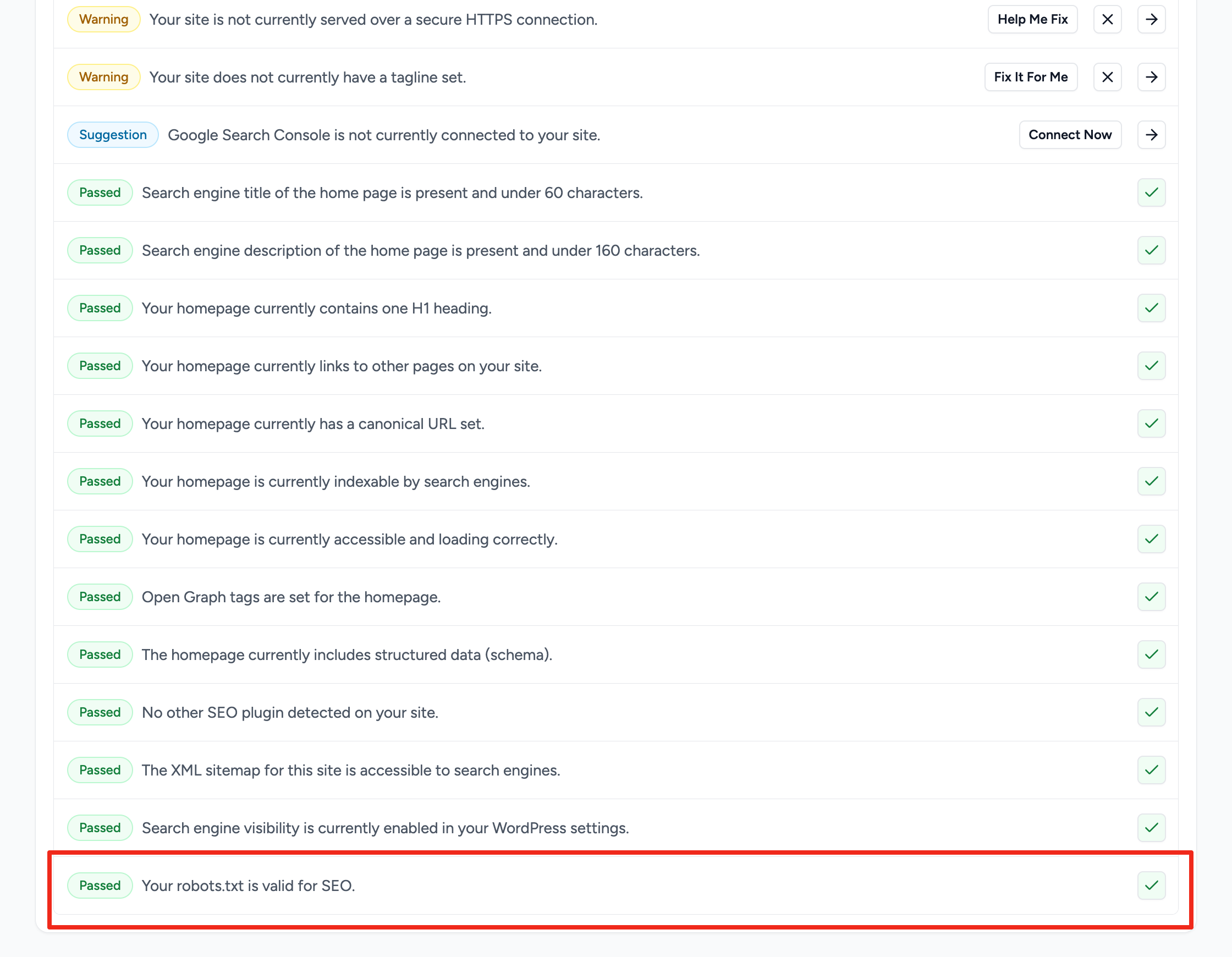
- In the Site SEO Audit, the warning goes away. If nothing else is found, the row changes to Passed and reads “Your robots.txt is valid for SEO.” Click View All Results to see it, because passed rows are listed there.
- In AI Ready Checks, the message goes away. If nothing else is found, the row changes to Passed and reads “Robots.txt is readable and points to your sitemap.” Another message can show instead, for example when the file has no Sitemap line.
We don't respond to the article feedback, we use it to improve our support content.