
- How to Migrate from Rank Math to SureRank
- How to Migrate from Yoast to SureRank
- How to Migrate from SEOPress to SureRank SEO
- How to Migrate from Squirrly SEO to SureRank
- How to Migrate from All in One SEO (AIOSEO) to SureRank
- How to Migrate from Slim SEO to SureRank
- How to Migrate from The SEO Framework to SureRank
- Migration Failed: How to Diagnose
- After You Migrate: Verification and Cleanup Checklist
- Sitemaps in SureRank
- How to Enable Video Sitemap in SureRank Pro
- How to Enable the News Sitemap in SureRank
- How to Show the HTML Sitemap on Your Site in SureRank Pro
- How to Regenerate the Sitemap After Excluding a Post Type in SureRank
- Change the Sitemap URL in SureRank
- How to Enable Author Sitemap in SureRank
- How to Exclude Post Types from the Sitemap
- How to Enable the Author Sitemap and Why Authors Are Excluded (Pro)
- Editing Meta Box
- SureRank – Page SEO Checks
- Enabling Page SEO Checks in WordPress
- Image Alt Text – Automatic Optimization
- Link Manager
- Using the SureRank Front-End Meta Box
- How to Edit the Meta Title and Description for a Single Page or Post
- Controlling Indexing with Robot Instructions
- How to Set Global Title and Description Templates with Variables
- How to Set a Canonical URL and How the Canonical Field Works
- How to Set the Homepage, Shop, and Archive Title & Description
- Setting Up Site Information for Google’s Knowledge Panel
- Social Settings: Facebook/Open Graph, X (Twitter) Cards, and Profile Links
- Why Do My Image Links Redirect to a Blog Post or My Homepage?
- How to Fix WWW and Non-WWW Version Redirects to Improve Your SEO
- How to Fix: No H1 Heading Found on Your Homepage
- How to Fix Missing H2 Headings on Your Homepage
- Re-run Checks Button in SureRank
- Fix Critical Error: Another SEO Plugin Detected in SureRank
- Fix Warning: Site Tagline Is Not Set in SureRank
- How to Fix: Robots.txt Contains Invalid Rules in SureRank
- How to Fix Multiple SEO Plugins Detected on Your Site
- How to Fix: Homepage is Not Indexable by Search Engines
- Warning: Homepage Does Not Contain Internal Links
- How to Fix: Search Engine Title is Missing on the Page
- Page Level SEO: Broken Links Detected
- How to Fix Missing Alt Text on Images
- How to Fix Page URLs That Are Too Long
- Page Level SEO Warning: No Links Found on This Page
- Page Level SEO Warning: No Images or Videos Found
- Page Level SEO Warning: Missing Search Engine Description
- Page Level SEO Warning: No Subheadings Found on This Page
- Page Level SEO Warning: Canonical Tag is Missing
- Page Level SEO Warning: Open Graph Tags Missing
- What is Google Search Console and how does SureRank use it?
- Recommended Image Sizes
- SureRank – SEO Check Severity Guide
- Using SureRank with Other SEO Plugins – Best Practices
- Import/Export Feature – SureRank Plugin
- What is llms.txt and Does SureRank Support It?
- Does SureRank offer a keyword rank-tracking feature?
- Does SureRank Come With Google Analytics Integration?
- Email Summary in SureRank
- SureRank Role Manager
- Fixing a Fatal Error After Updating SureRank
- SureRank Server Requirements
- Search Engines Not Indexing Your WordPress Site?
- Sitemap Not Showing in SureRank
- Fixing robots.txt Issues in SureRank
- Why a Working Link Is Flagged as Broken (404)
- Which Pages Are Included in Your SureRank Sitemap
- Fixing False SEO Audit Warnings Caused by Caching
- Fixing “Couldn’t Fetch” for Your Sitemap in Google Search Console
- Troubleshooting: Favicon and Logo in Google Search Results (Supported Formats and CDN Gotchas)
- Customize XML Sitemap Top Bar with surerank_sitemap_top_bar_data
- Analyze ACF Field Content with SureRank
- Preserve Modified Date During Updates surerank_freeze_modified_date
- Customize Final Title Tag surerank_final_title
- Customize Post Type Archive Title Output surerank_post_type_archive_title
- Customize Archive Page Title with surerank_archive_title
- Customize the Search Results Page Title surerank_search_title
- Customizing the 404 Page Title surerank_not_found_title
- Customizing the Title Separator surerank_title_separator
- Disable SureRank’s Document Title Integration
- What Is AI Ready in SureRank?
- How to Fix the Indexing and Snippet Rules Result in SureRank AI Ready Checks
- How to Fix the Home Page Text Without JavaScript Result in SureRank AI Ready Checks
- How to Handle the OAuth Discovery Result in SureRank AI Ready Checks
- How to Handle the A2A Agent Card Result in SureRank AI Ready Checks
- How to Handle the Web Bot Auth Result in SureRank AI Ready Checks
- How to Fix the Site Slow and Site Unreachable Results in SureRank AI Ready Checks
- How to Fix the llms.txt Result in SureRank AI Ready Checks
- How to Fix the Content Signals Result in SureRank AI Ready Checks
- How to Fix the MCP Server Card Result in SureRank AI Ready Checks
Social Settings: Facebook/Open Graph, X (Twitter) Cards, and Profile Links
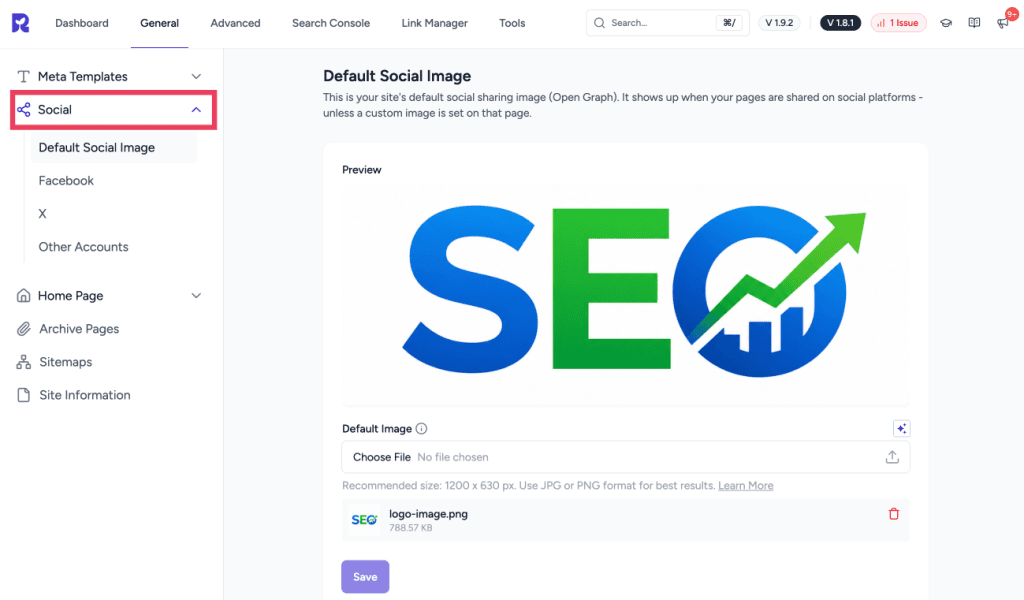
Where “Social” Actually Lives
Social settings are nested inside General Settings, not a top-level menu item:
SureRank → General → Social, which itself has four sub-tabs:
- Default Social Image. The site-wide fallback image used when no other image is available.
- Facebook. Your site’s Facebook Page URL and author fallback.
- X. Card type, your X profile, and author fallback.
- Other Accounts. Instagram, YouTube, LinkedIn, TikTok, Pinterest, WhatsApp, Telegram, Yelp, and BlueSky profile links.
A second, separate “Social” panel exists at General → Home Page → Social.
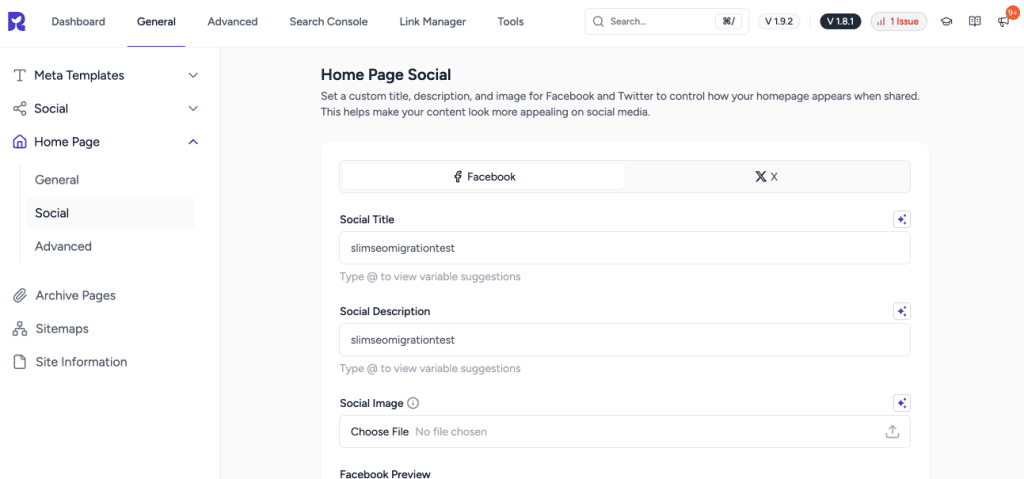
This is a homepage-only override (its own title, description, and image per network), distinct from the global Social settings above. If the homepage preview looks wrong, check which of these panels applies to your homepage setup.
Open Graph (Facebook)
| Setting | Where | Effect |
| Facebook Page URL | Social → Facebook | Outputs as article:publisher |
| Author Facebook Page | Social → Facebook | Outputs as article:author |
| Default Image | Social → Default Social Image | Site-wide fallback og:image |
| Per-post title/description/image | Post editor → SureRank metabox → Social tab | Overrides the page’s own og:title/og:description/og:image |
| Homepage title/description/image | General → Home Page → Social | Only applies to your homepage (see the homepage/shop guide for when this is used vs. ignored) |
How the OG image is chosen, in order:
- The image is set directly on that post or page’s own Social tab, if any.
- If no explicit social image is set, SureRank may use the featured image or an image from the page content, depending on context.
- The site-wide Default Social Image.
If a preview shows the wrong image, set an explicit social image for the page, inspect its output tags, and allow for the platform’s preview cache to update.
X (Twitter) Cards
| Setting | Where | Effect |
| Card Type | Social → X | summary_large_image (default) or summary |
| Site’s X Profile | Social → X | Outputs as twitter:site |
| Author’s X Profile | Social → X | Outputs as twitter:creator |
| “Use data from Facebook Tab” | Per-post / homepage social panel, on by default | If enabled, the Twitter card reuses the Facebook title, description, and image instead of separate Twitter-specific values |
There’s no separate “default Twitter image” setting. If the Facebook-reuse option is off, it falls back through the same image chain described above.
Profile Links (“Other Accounts”)
This is a list of social profile URLs. Facebook and X are excluded here since they have their own dedicated tabs above. These links are for structured data only. They populate your Organization schema’s sameAs property for Google’s Knowledge Panel. They do not appear anywhere as visible content or meta tags on your actual pages. These settings do not add social icons or links to your site’s visible content. It’s a schema/SEO signal, not a display feature.
Configure Your Social Settings
- Go to SureRank → General → Social.
- For Facebook-specific settings, use the Facebook sub-tab. For X-specific settings, use the X sub-tab.
- For your default fallback image (used when no other image applies), use Default Social Image.
- For other platform profile links (feeding Google’s Knowledge Panel, not visible on-page), use Other Accounts.
- For homepage-specific overrides only, go to General → Home Page → Social instead. This is separate from the settings above.
- To override social title, description, or image on an individual post or page, use the SureRank metabox’s Social tab on that post’s edit screen.
If That Doesn’t Work
- Social platforms cache previews, so updates may take time. Use Facebook Sharing Debugger to inspect a URL and consult each platform’s current preview troubleshooting tools; do not assume an X validation request refreshes its cache.
- Confirm no other SEO plugin is also outputting Open Graph or Twitter tags. View the page source and check for duplicate og: or twitter: tags.
We don't respond to the article feedback, we use it to improve our support content.