
- How to Migrate from Rank Math to SureRank
- How to Migrate from Yoast to SureRank
- How to Migrate from SEOPress to SureRank SEO
- How to Migrate from Squirrly SEO to SureRank
- How to Migrate from All in One SEO (AIOSEO) to SureRank
- How to Migrate from Slim SEO to SureRank
- How to Migrate from The SEO Framework to SureRank
- Migration Failed: How to Diagnose
- After You Migrate: Verification and Cleanup Checklist
- Sitemaps in SureRank
- How to Enable Video Sitemap in SureRank Pro
- How to Enable the News Sitemap in SureRank
- How to Show the HTML Sitemap on Your Site in SureRank Pro
- How to Regenerate the Sitemap After Excluding a Post Type in SureRank
- Change the Sitemap URL in SureRank
- How to Enable Author Sitemap in SureRank
- How to Exclude Post Types from the Sitemap
- How to Enable the Author Sitemap and Why Authors Are Excluded (Pro)
- Editing Meta Box
- SureRank – Page SEO Checks
- Enabling Page SEO Checks in WordPress
- Image Alt Text – Automatic Optimization
- Link Manager
- Using the SureRank Front-End Meta Box
- How to Edit the Meta Title and Description for a Single Page or Post
- Controlling Indexing with Robot Instructions
- How to Set Global Title and Description Templates with Variables
- How to Set a Canonical URL and How the Canonical Field Works
- How to Fix WWW and Non-WWW Version Redirects to Improve Your SEO
- How to Fix: No H1 Heading Found on Your Homepage
- How to Fix Missing H2 Headings on Your Homepage
- Re-run Checks Button in SureRank
- Fix Critical Error: Another SEO Plugin Detected in SureRank
- Fix Warning: Site Tagline Is Not Set in SureRank
- How to Fix: Robots.txt Contains Invalid Rules in SureRank
- How to Fix Multiple SEO Plugins Detected on Your Site
- How to Fix: Homepage is Not Indexable by Search Engines
- Warning: Homepage Does Not Contain Internal Links
- How to Fix: Search Engine Title is Missing on the Page
- Page Level SEO: Broken Links Detected
- How to Fix Missing Alt Text on Images
- How to Fix Page URLs That Are Too Long
- Page Level SEO Warning: No Links Found on This Page
- Page Level SEO Warning: No Images or Videos Found
- Page Level SEO Warning: Missing Search Engine Description
- Page Level SEO Warning: No Subheadings Found on This Page
- Page Level SEO Warning: Canonical Tag is Missing
- Page Level SEO Warning: Open Graph Tags Missing
- What is Google Search Console and how does SureRank use it?
- Recommended Image Sizes
- SureRank – SEO Check Severity Guide
- Using SureRank with Other SEO Plugins – Best Practices
- Import/Export Feature – SureRank Plugin
- What is llms.txt and Does SureRank Support It?
- Does SureRank offer a keyword rank-tracking feature?
- Does SureRank Come With Google Analytics Integration?
- Email Summary in SureRank
- SureRank Role Manager
- Fixing a Fatal Error After Updating SureRank
- SureRank Server Requirements
- Search Engines Not Indexing Your WordPress Site?
- Sitemap Not Showing in SureRank
- Fixing robots.txt Issues in SureRank
- Why a Working Link Is Flagged as Broken (404)
- Which Pages Are Included in Your SureRank Sitemap
- Fixing False SEO Audit Warnings Caused by Caching
- Fixing “Couldn’t Fetch” for Your Sitemap in Google Search Console
- Troubleshooting: Favicon and Logo in Google Search Results (Supported Formats and CDN Gotchas)
- Customize XML Sitemap Top Bar with surerank_sitemap_top_bar_data
- Analyze ACF Field Content with SureRank
- Preserve Modified Date During Updates surerank_freeze_modified_date
- Customize Final Title Tag surerank_final_title
- Customize Post Type Archive Title Output surerank_post_type_archive_title
- Customize Archive Page Title with surerank_archive_title
- Customize the Search Results Page Title surerank_search_title
- Customizing the 404 Page Title surerank_not_found_title
- Customizing the Title Separator surerank_title_separator
- Disable SureRank’s Document Title Integration
- Customize Homepage Pagination Format surerank_homepage_pagination_format
- Customize SEO Title Length Check Threshold surerank_title_length
- Show or Hide Pagination in SureRank SEO Titles surerank_show_pagination
- Show or Hide Site Name in SEO Title surerank_show_site_name
- Customize Robots Meta Tags surerank_robots_meta_array
- Add “noindex” to Paginated Pages surerank_noindex_paginated_pages
- Customize Meta Description Length surerank_description_length
- Customize Product Category Rewrite Rules surerank_product_category_rewrite_rules
- Remove Product Category Base surerank_remove_product_category_base
- Customize Category URL Structure surerank_remove_category_base
- Disable Permalinks in RSS Feeds surerank_disable_permalink_in_feed
- Customize URL Length Check Threshold surerank_url_length
- Control SureRank Feed Noindex Header surerank_disable_feed_indexing
- Open External Links in New Tab
- Enabling the AI (MCP) Integration and Connecting an AI Client
- Regenerating the SureRank Sitemap Cache with WP-CLI
- Show Meta Title and Description in Post Lists surerank_show_meta_in_admin_list
- Customize Blocked Link Statuses surerank_link_manager_blocked_statuses
- Change the MCP Server Card surerank_pro_mcp_server_card
- Add Entries to the API Catalog surerank_pro_api_catalog_entries
- Add Entries to the AI Catalog surerank_pro_ai_catalog_entries
- Add or Remove Agent Skills surerank_pro_agent_skills
- What Is AI Ready in SureRank?
- How to Fix the Indexing and Snippet Rules Result in SureRank AI Ready Checks
- How to Fix the Home Page Text Without JavaScript Result in SureRank AI Ready Checks
- How to Handle the OAuth Discovery Result in SureRank AI Ready Checks
- How to Handle the A2A Agent Card Result in SureRank AI Ready Checks
- How to Handle the Web Bot Auth Result in SureRank AI Ready Checks
- How to Fix the Site Slow and Site Unreachable Results in SureRank AI Ready Checks
- How to Fix the llms.txt Result in SureRank AI Ready Checks
- How to Fix the Content Signals Result in SureRank AI Ready Checks
- How to Fix the MCP Server Card Result in SureRank AI Ready Checks
Enabling the AI (MCP) Integration and Connecting an AI Client
SureRank supports the Model Context Protocol (MCP), which lets AI clients such as Claude and Cursor connect directly to a WordPress site and read or update SEO settings, page and term metadata, SEO checks, sitemap configuration, and robots.txt through SureRank. With SureRank Pro active, AI clients can also manage redirections, submit URLs for indexing, and update the news, video, and author sitemap and breadcrumb settings. This document covers turning the integration on and connecting a compatible AI client to it.
What This Integration Does
Once enabled, MCP exposes the following SEO abilities to a connected AI client:
| Area | Abilities |
| Content | List content types, list content items, get/update post SEO, get/update term SEO |
| Site settings | Get/update global SEO settings, get/update robots.txt, get/update sitemap settings. |
| Analysis | Get post SEO checks, get term SEO checks |
An AI client with these abilities can, for example, audit a batch of posts for missing meta descriptions and update them, adjust sitemap or robots.txt rules, or pull SEO check results for a page, all through natural-language requests to the connected client instead of the SureRank admin screens.
SureRank Pro Abilities
When SureRank Pro is installed and active, the following abilities are added to the same MCP connection. No extra setup is needed beyond the steps in this document, unless an ability notes otherwise below.
Redirections
- List redirections (
surerank/list-redirections): Lists redirection rules, with pagination and search by source or destination URL. Read only. - Create redirection (
surerank/create-redirection): Creates a redirection rule. If a rule with the same source URLs and query rule already exists, its destination URL is updated instead. - Update redirection (
surerank/update-redirection): Updates an existing redirection rule. Only the fields provided are changed. - Delete redirection (
surerank/delete-redirection): Permanently deletes a redirection rule by its ID.
Google Indexing
- Submit URL for indexing (
surerank/submit-url-for-indexing): Requests indexing or re-indexing of up to 100 URLs through the Google Indexing API. Requires Google service account credentials configured in SureRank Pro. - Remove URL from index (
surerank/remove-url-from-index): Asks Google to remove up to 100 URLs from its index. Works only for pages that return a 404 or 410 status or are set to noindex. - Get indexing logs (
surerank/get-indexing-logs): Shows the history of Google Indexing API requests, newest first. Read only. - Get indexing quota (
surerank/get-indexing-quota): Shows the Google Indexing API quota limits, current usage, and remaining capacity. Read only.
IndexNow (Instant Indexing)
- Submit instant indexing (
surerank/submit-instant-indexing): Submits up to 100 URLs to IndexNow-compatible search engines, such as Bing and Yandex. Uses the site’s IndexNow key, so no extra credentials are needed. - Get instant indexing logs (
surerank/get-instant-indexing-logs): Shows the history of IndexNow submissions, newest first. Read only.
Sitemaps
- Get / update news sitemap settings (
surerank/get-news-sitemap-settings,surerank/update-news-sitemap-settings): Shows or changes the Google News sitemap toggle and the post types it includes. - Get / update video sitemap settings (
surerank/get-video-sitemap-settings,surerank/update-video-sitemap-settings): Shows or turns the video sitemap on or off. - Get / update author sitemap settings (
surerank/get-author-sitemap-settings,surerank/update-author-sitemap-settings): Shows or turns the author sitemap on or off.
Breadcrumbs
- Get / update breadcrumb settings (
surerank/get-breadcrumb-settings,surerank/update-breadcrumb-settings): Shows or changes whether breadcrumbs are output and whether parent pages appear in the trail.
With these abilities, an AI client can, for example, add redirects for pages that were moved, submit newly published URLs to IndexNow, or turn on the video sitemap.
Important: Every ability still enforces the manage_options capability check on the WordPress side. Connecting an AI client only works with an account that has Administrator-level permissions.
How to Enable MCP
- Go to WordPress Dashboard → SureRank → Tools → MCP.
- Turn on Enable MCP.
- If the WP MCP Adapter plugin isn’t detected on the site, an inline warning titled “MCP Adapter plugin not detected” appears, explaining that the WP MCP Adapter plugin is required to connect AI clients. Select Download from GitHub, then install it the usual way:
- Go to Plugins → Add New → Upload Plugin.
- Upload the downloaded mcp-adapter.zip file.
- Select Install Now, then Activate.
- Return to SureRank → Tools → MCP. The Connect Your AI Client panel appears below the toggle as soon as MCP is enabled, even before the adapter is installed.
- Once the adapter is active, the “MCP Adapter plugin not detected” warning disappears, but the panel stays visible either way.
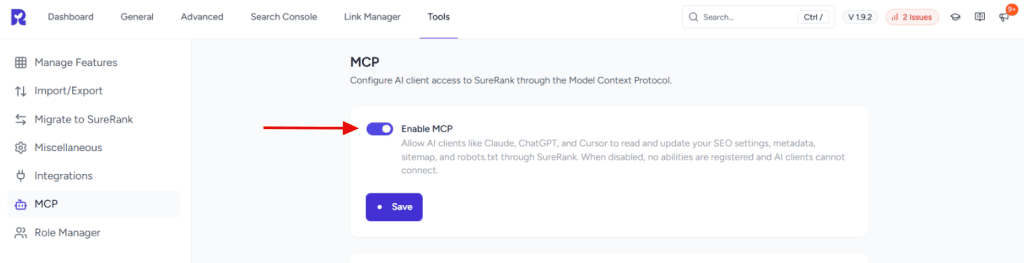
Note: Turning Enable MCP off disables SureRank’s abilities and its dedicated MCP server. Other plugins’ abilities and the adapter’s global server are controlled separately.
Connecting an AI Client
The Connect Your AI Client panel generates a ready-to-use connection config. It uses your existing WordPress login and an Application Password. SureRank does not generate a separate API key or token for MCP.
Step 1: Create an Application Password
Select Open Application Passwords in the panel (opens Users → Profile → Application Passwords), and generate a new password.
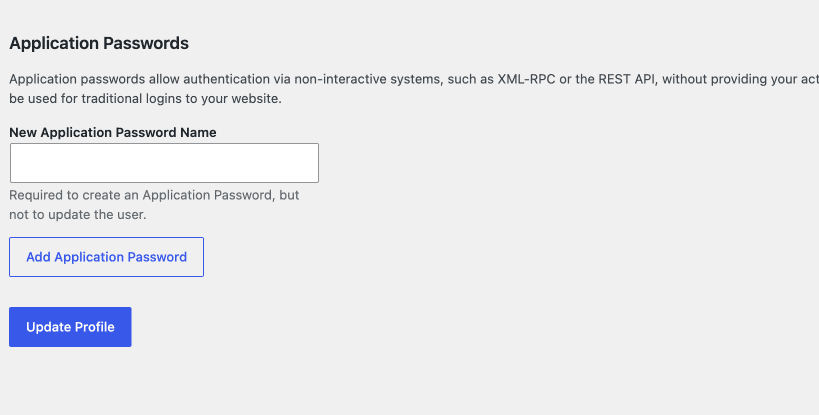
Copy it and keep it saved; it’s only shown once.
Step 2: Choose a Connection Scope
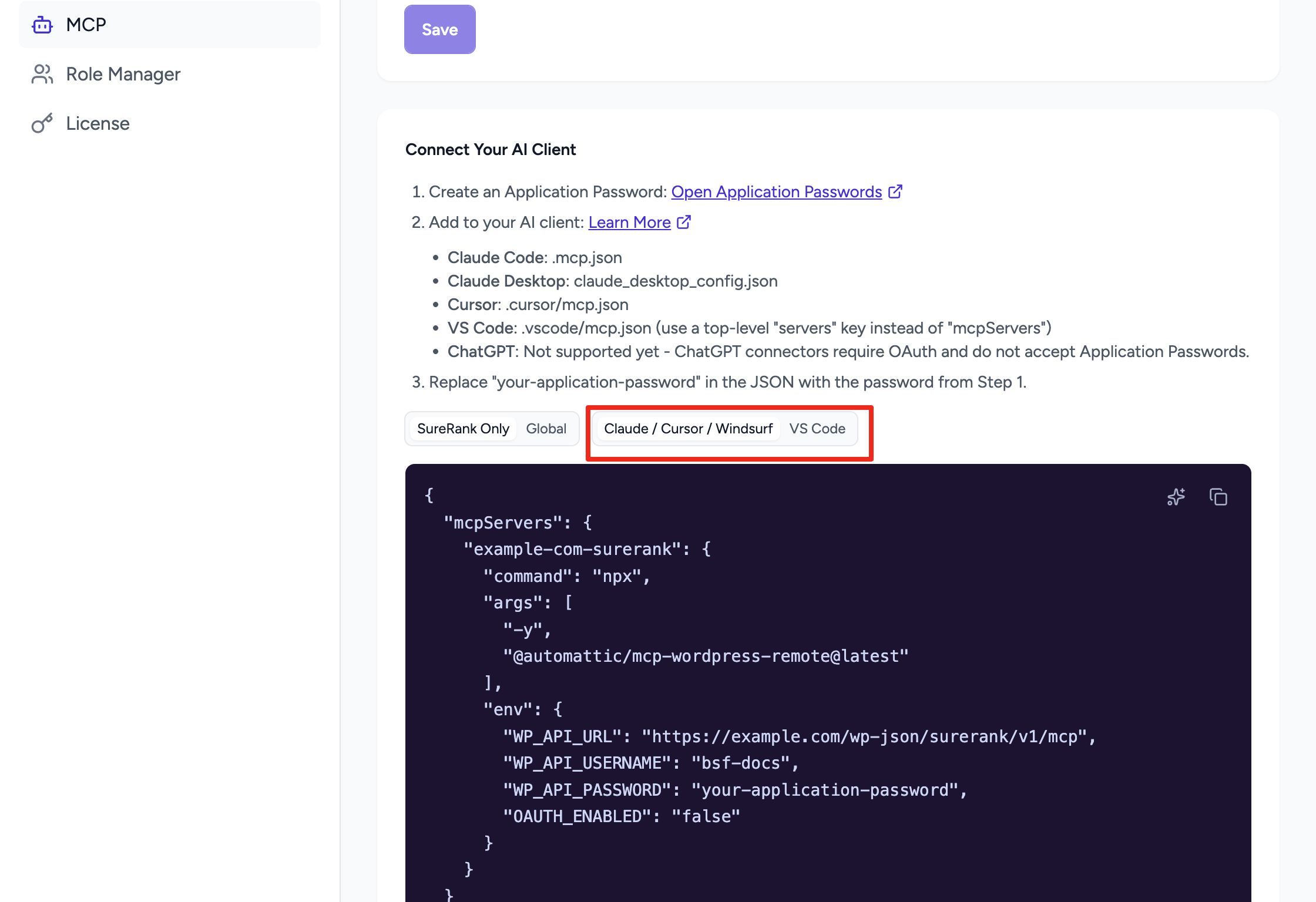
Use the tabs above the generated config:
- SureRank Only: connects to SureRank’s abilities alone, at https://yoursite.com/wp-json/surerank/v1/mcp.
- Global: connects to every WordPress ability exposed through the WP MCP Adapter’s default server (including other plugins that register abilities), at https://yoursite.com/wp-json/mcp/mcp-adapter-default-server.
Step 3: Copy the Generated Config
This local configuration uses npx. Install Node.js 20 or newer and confirm node and npx are available to your client. If a desktop client cannot find npx, use its absolute path and configure PATH for that client. ChatGPT connectors are not supported by this Application Password setup. Use the copy icon in the top-right of the code block:
{
  "mcpServers": {
    "yoursite-com-surerank": {
      "command": "npx",
      "args": [ "-y", "@automattic/mcp-wordpress-remote@latest" ],
      "env": {
        "WP_API_URL": "https://yoursite.com/wp-json/surerank/v1/mcp",
        "WP_API_USERNAME": "your-wp-username",
        "WP_API_PASSWORD": "your-application-password",
        "OAUTH_ENABLED": "false"
      }
    }
  }
}Replace “your-application-password” with the Application Password that you saved from step 1.
The panel also has two tabs for the config format. Select Claude / Cursor / Windsurf for Claude Code, Claude Desktop, Cursor, and Windsurf, or select VS Code for VS Code. The only difference is the top-level key (mcpServers or servers), so the entry does not need to be edited by hand.
Keep "OAUTH_ENABLED": "false" in the config. The connection tool uses an OAuth sign-in by default, and this site signs in with an Application Password.
Step 4: Add the Config to Your AI Client
| Client | Config file |
| Claude Code | .mcp.json |
| Claude Desktop | claude_desktop_config.json |
| Cursor | .cursor/mcp.json |
| VS Code | .vscode/mcp.json. Select the VS Code tab before copying the config. |
| ChatGPT | Not supported yet. ChatGPT connectors require OAuth and do not accept Application Passwords. |
If a config file already lists other MCP servers, add this entry alongside them rather than replacing the file. For VS Code, select the VS Code tab before copying the config.
Tip: Select the sparkle icon next to the code block to copy a setup prompt instead of raw JSON. It’s written to be pasted into an AI coding assistant (like Claude Code or Cursor) so it can locate the right config file for your OS and client and apply the change for you.
Publish the MCP Server Card (SureRank Pro)
SureRank Pro can also announce the MCP server of the site, so an AI client can find it without being given the address. This is done with a file called the MCP server card. Follow the steps below.
- Turn on Enable MCP under SureRank → Tools → MCP, and click Save.
- Go to SureRank → AI Ready → Agent Discovery.
- Turn on Publish an MCP Server Card, and click Save.
The card is then published at /.well-known/mcp/server-card.json on the domain of the site. It is served only while the MCP server is on and registered. For all the Agent Discovery files, see How to Publish Agent Discovery Files in SureRank.
Expected Outcome
After the config is added (and the client restarted, if required), the AI client can list and call SureRank’s MCP tools, for example retrieving a post’s SEO title/description or updating robots.txt rules, using the account whose Application Password was used to connect.
Settings Explained
| Setting | Description |
| Enable MCP | When off, SureRank abilities and its dedicated MCP server are disabled. Other plugins and the adapter’s global server are not disabled by this switch. |
| SureRank Only (tab) | Generates a config scoped to only SureRank’s SEO abilities. |
| Global (tab) | Generates a config scoped to all abilities exposed by the WP MCP Adapter site-wide. |
| Claude / Cursor / Windsurf (tab) | Generates the config with the mcpServers key. |
| VS Code (tab) | Generates the config with the servers key. |
Notes and Limitations
- MCP access always uses standard WordPress Application Passwords. There’s no SureRank-specific API key to manage. Revoking access means deleting the Application Password under Users → Profile → Application Passwords.
- The WP MCP Adapter plugin must stay active for either scope to work, even though SureRank’s toggle is what registers the abilities.
- All abilities require an Administrator-level account.
- Copying the config or prompt uses the browser clipboard API, which requires HTTPS (or localhost).
- SureRank Pro abilities are available only when SureRank Pro is installed and active, and they follow the same Enable MCP toggle as the free abilities.
- The news, video, and author sitemaps are served only when the main XML sitemap is enabled. The author sitemap also needs author archives enabled.
- The Google Indexing API supports only pages with JobPosting or BroadcastEvent (inside VideoObject) structured data. Other pages are usually ignored but still use the daily quota of 200 requests. Removal requests use the same quota.
- Breadcrumb display options such as the separator, the home label, and formats are set by the theme or the breadcrumb shortcode, and cannot be changed through MCP.
Troubleshooting
“MCP Adapter plugin not detected” keeps showing after installing it. Confirm it’s activated under Plugins → Installed Plugins, not just uploaded.
The AI client can’t connect after adding the config. Verify the Application Password (not account password) was used, Enable MCP is on, and the account is an Administrator.
The copy button doesn’t do anything. The admin page likely isn’t served over HTTPS; copy the config manually instead.
“SureRank MCP server is not registered” shows after installing the adapter. An MCP adapter is active, but it did not register the SureRank server, so the SureRank connection address does not respond. The warning also shows the reason that the adapter reported. Confirm that Enable MCP is on and saved under SureRank → Tools → MCP, and read the reason that the adapter reported. For example, another plugin may already have registered a server named “surerank”. Fix that, then run the checks again.
The MCP server row in AI Ready Checks shows a message. On SureRank → AI Ready → AI Ready Checks, the MCP server row can show:
- “Your MCP server is switched off, and the adapter it needs is not installed.” Install and activate the MCP Adapter plugin, then turn on MCP under SureRank → Tools → MCP.
- “Your MCP server is switched off.” Click Fix It For Me, or turn on MCP under SureRank → Tools → MCP.
- “MCP is on, but the adapter it needs is not installed.” Install and activate the MCP Adapter plugin.
- “MCP is on, but WordPress is too old to run it.” The MCP Adapter needs the Abilities API, which WordPress added in version 6.9. Update WordPress.
- “MCP is on, but code on your site has switched the server off.” A plugin or custom code returns false from the
surerank_mcp_server_enabledfilter, so the server is not registered. Ask the developer to remove or change that code. - “MCP is now on. Run the checks again to confirm the server registered.” Click Run Checks again.
- “The MCP server did not register.” The line under it gives the reason, for example another plugin already registered a server named “surerank”. Fix that, then run the checks again.
- “Could not read the MCP server status.” Update the free SureRank plugin.
- “Your MCP server is registered and switched on.” There is nothing to do.
We don't respond to the article feedback, we use it to improve our support content.